
Fix wordpress issues starts with identifying the exact symptom, checking recent changes, and using logs before making risky changes on a live WordPress site. A broken page, admin error, checkout failure, security warning, or blank screen may look simple, but the cause can sit inside plugins, themes, PHP, cache, hosting, database, or custom code.
This guide explains what to check first, which signals matter, and when the issue should be handled as a focused WordPress troubleshooting task instead of a random plugin experiment.
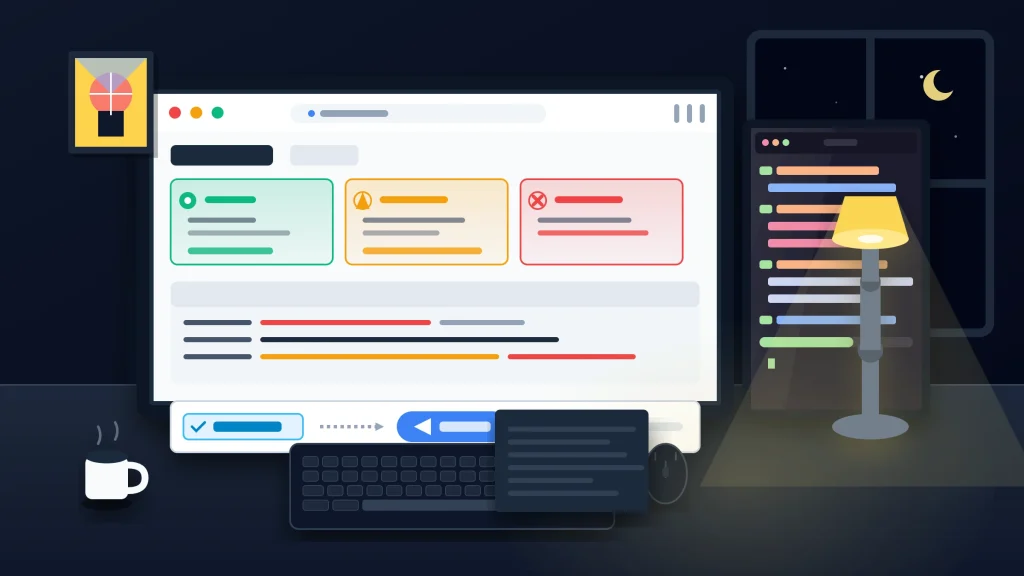
Why WordPress issues need a structured process
WordPress issues can look similar on the surface even when the root causes are different. A broken layout, missing form, admin error, slow page, or failed checkout may come from plugins, themes, custom code, cache, hosting, scripts, or database behavior.
Start with the symptom
Define the symptom clearly. Is the issue visible on one page or the whole site? Does it affect logged-in users only? Did it start after an update? Does it happen on mobile, desktop, checkout, admin, or a specific template?
Check recent changes
Recent changes are often the fastest clue. Review plugin updates, theme changes, WordPress core updates, PHP upgrades, hosting changes, CDN rules, security settings, new snippets, and new integrations.
Use logs instead of guessing
Error logs, browser console messages, network failures, PHP warnings, fatal errors, and database errors can point to the real cause. Guessing can make the issue worse, especially on a live production site.
When issues keep coming back
Recurring WordPress issues often mean the site needs ongoing maintenance, safer update workflows, staging tests, backup checks, plugin review, and clearer monitoring.
Related service pages
If the issue affects a live business website, it may need direct technical troubleshooting rather than repeated trial and error.
Conclusion
fix wordpress issues is safest when the work starts from symptoms, recent changes, logs, and a controlled recovery plan. The goal is not only to make the visible error disappear, but to understand why the site broke and reduce the chance of the same issue returning.
Frequently asked questions
What is the best way to fix WordPress issues?
The best way is to identify the symptom, review recent changes, check logs, test safely, and avoid random changes on the live site.
Can cache cause WordPress issues?
Yes. Cache can hide old files, serve broken assets, affect logged-in behavior, or conflict with plugin and theme changes.
Can hosting cause WordPress issues?
Yes. Hosting limits, PHP versions, memory limits, file permissions, database problems, and server configuration can all affect WordPress.
Should I disable all plugins?
Only if you have a safe recovery path or staging site. On a live site, disabling plugins blindly can break forms, checkout, SEO, or layout.