
A WordPress REST API error can be confusing because the visible site may still work normally. Yet the block editor may refuse to save, Site Health may report a failed loopback or REST check, a plugin screen may not load data, or an external service may stop connecting. These symptoms share an important detail: WordPress is trying to make or receive an HTTP request, and that request is not getting the response it expects.
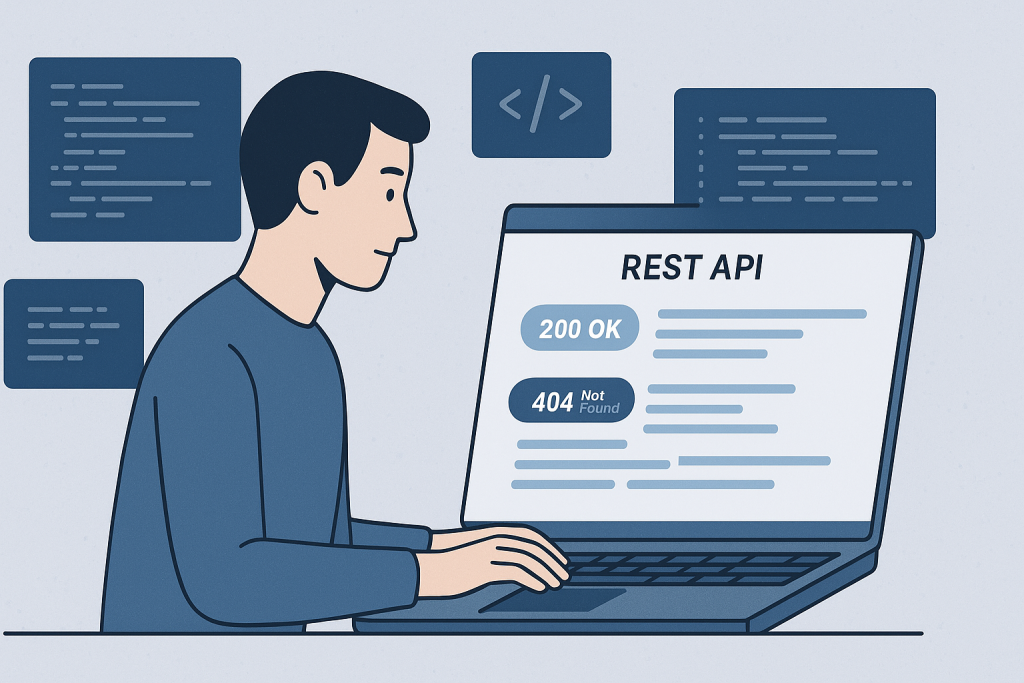
The safest approach is to identify the failed request before changing settings. A REST API problem can come from a security rule, a bad redirect, an authentication issue, a plugin, a theme function, custom code, or the hosting environment. If the cause is unclear or the failure affects essential site functions, practical WordPress bug fixing can help trace the issue without relying on random fixes.
What a WordPress REST API error means
The REST API is a built-in WordPress interface that lets WordPress features, plugins, themes, and approved external applications exchange data through URLs. Requests commonly use paths beginning with /wp-json/. For example, the block editor uses API requests to load and save post data, while plugins may use them for settings, product data, forms, analytics, or connected services.
An error does not always mean the API is entirely disabled. One endpoint may fail while others work. A request can also be blocked only for logged-in users, only in the editor, or only when a particular plugin is active. That scope is valuable evidence: it narrows the investigation far more effectively than clearing every cache or reinstalling WordPress.
Common signs of a WordPress REST API error
The symptom depends on the feature using the request. Common signs include:
- The block editor shows “Updating failed,” “Publishing failed,” or “Response is not a valid JSON response.”
- Changes appear to save inconsistently, or a plugin’s settings page spins without finishing.
- WordPress Site Health reports that the REST API encountered an error.
- A connected mobile app, CRM, search service, or automation tool cannot retrieve WordPress data.
- A plugin’s frontend feature fails because its AJAX or REST request receives a 403, 404, 500, or redirect.
- The request works when logged out but fails in the dashboard, or works for an administrator but not another role.
These are request failures, not necessarily content failures. A page loading in a browser does not prove that its behind-the-scenes API calls are healthy.
Start by identifying the exact failed request
Before disabling anything, reproduce the problem and record the details. If an editor cannot save a post, note the post type, whether the failure occurs on every post or only one, the account role in use, and the time it happened. If Site Health reports a problem, copy the full error message rather than relying on a summary.
Browser developer tools can provide useful evidence. In the Network panel, reproduce the action and find the request that failed. Record the request URL, HTTP status code, response body, and any redirect location. Avoid sharing credentials, cookies, nonces, private URLs, or personal data when collecting this information.
Status codes often point toward the next check:
- 401 or 403: authentication, permissions, a firewall, or a security plugin may be denying the request.
- 404: rewrite rules, a changed site URL, a proxy rule, or an incorrect endpoint can be involved.
- 500: WordPress or server-side code failed while processing the request.
- 301 or 302: an HTTP/HTTPS, www/non-www, login, language, or domain redirect may be interfering.
- 200 with unexpected HTML: the request may have been redirected to a login page, challenge page, error page, or cached document instead of returning JSON.
A status code is evidence, not a complete diagnosis. For example, a 403 can originate in a WordPress security plugin, a web application firewall, a hosting rule, or a CDN configuration.
Check the WordPress URL and HTTPS setup
REST API requests are sensitive to canonical URL consistency. In WordPress settings, the WordPress Address and Site Address should match the intended public domain and protocol. A site that loads partly over HTTPS but sends API requests to HTTP can encounter redirects, blocked mixed content, or cookie problems.
Also check whether the site behaves differently with and without www, on a temporary staging domain, or behind a reverse proxy. Do not casually change URL settings on a live site if you are uncertain; a wrong change can lock you out of the dashboard. Instead, confirm how the public site and the failed request are actually being routed.
Review permalink and rewrite behavior
Many REST API URLs depend on WordPress rewrite rules. If requests to /wp-json/ return a 404 while a query-string version works, the server may not be passing requests to WordPress correctly. This can happen after a migration, server configuration change, replacement of an .htaccess file, or an incorrect Nginx rule.
Resaving permalink settings can refresh WordPress rewrite rules, but it is not a universal fix. If the server configuration itself is wrong, the problem will remain. Treat a successful refresh as a clue, then verify the original failing feature rather than assuming the issue is resolved.
Look for security, caching, and firewall interference
Security plugins and server-level firewalls can protect a site while also blocking legitimate API traffic. This is especially likely when a rule sees a request payload, repeated editor saves, an unfamiliar IP address, or a request containing terms it flags. CDN and cache layers can create different symptoms by caching an endpoint that should be dynamic, stripping headers, or returning a challenge page.
Review security and firewall logs around the failure time. If a rule is clearly blocking a legitimate endpoint, make the smallest appropriate allow rule and test again. Do not broadly disable protection on a production site merely to see whether it helps. If a temporary test is necessary, use a controlled window, document the change, and restore protection immediately afterward.
Test plugins and theme code methodically
Plugins, must-use plugins, theme functions, and custom snippets can modify REST routes, permissions, authentication, redirects, or response output. A small piece of code that prints text, raises a warning, or exits early can turn a JSON response into invalid output.
Use a staging environment when possible. Test one meaningful change at a time: temporarily disable the plugin most closely related to the failing feature, reproduce the issue, then restore it before trying the next candidate. If the issue disappears, confirm it by re-enabling the component and retesting. This avoids mistaking coincidence for a cause.
A default theme test may help when the failure is tied to a theme template, custom functions file, or editor integration. However, do not change a live site’s theme without a safe plan, particularly if it has custom layouts or commerce functionality.
Check authentication and user permissions
Some WordPress REST API endpoints are public, while others require a logged-in user with the correct capability and a valid nonce. If an error occurs only for one user role, only after a session has been open for a long time, or only in an embedded admin screen, focus on authentication and permissions.
Common causes include stale browser sessions, a custom role lacking a required capability, aggressive cookie settings, a domain mismatch that prevents cookies from being sent, or custom code that changes REST permission callbacks. A private endpoint should not be made public as a shortcut. The correct fix is to restore the intended permission and authentication flow.
When the error needs prompt technical help
Seek help promptly when the REST API error prevents publishing important content, stops forms or connected systems from operating, affects customer-facing functionality, or produces server errors. It is also worth escalating when the issue follows a migration, DNS change, security rule change, or hosting move, because multiple infrastructure layers may be involved.
If revenue-critical checkout, customer access, or a live campaign is affected, treat the incident according to its business impact and consider emergency website bug fixing. Preserve useful evidence first: the failing URL, status code, time, affected user role, recent changes, and relevant server or firewall messages.
Need help with a WordPress bug?
A WordPress REST API error is usually solvable once the failed request and the layer modifying it are identified. The aim is not to disable every plugin or change unrelated settings; it is to establish what response WordPress should return, what it returns instead, and where that difference begins. With a focused trace, you can apply a fix that restores the affected editor, plugin, or integration without creating a new problem elsewhere.