
A WooCommerce order stuck on Processing is not always a fault. In many stores, Processing is the correct status for an order that has been paid and still needs fulfilment. It becomes a problem when the order should move on automatically but does not, when fulfilment tools never receive it, or when the status does not match what actually happened with payment or delivery.
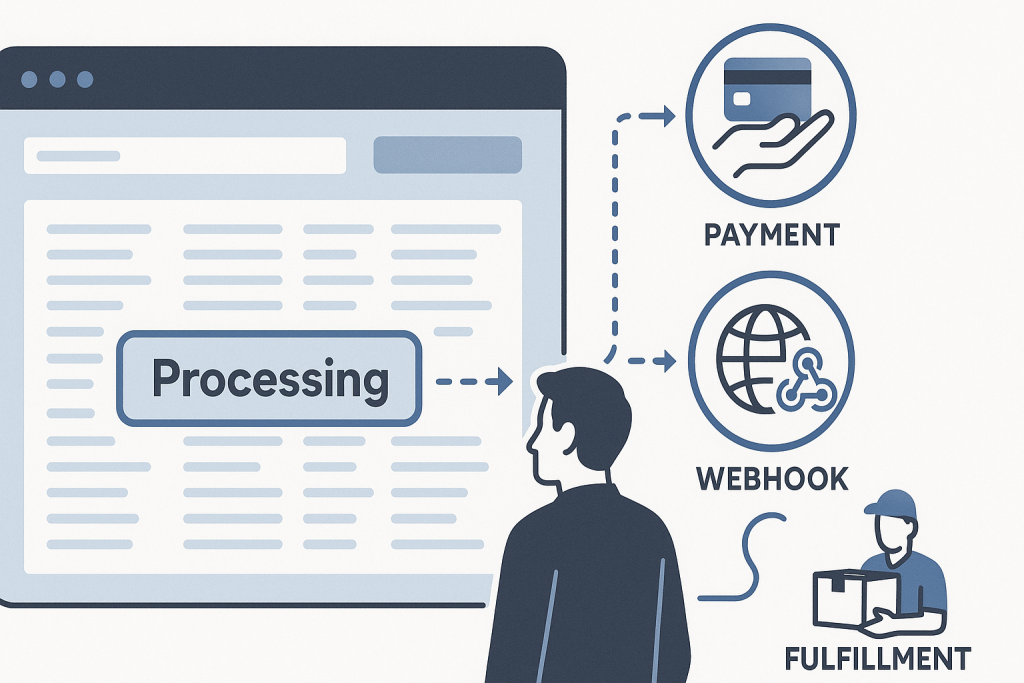
The important first step is not to change statuses in bulk. Instead, confirm what Processing means for the product type and trace the order’s path from checkout through payment, stock handling, and fulfilment. That approach avoids shipping an unpaid order, cancelling a legitimate sale, or hiding a recurring technical issue.
If the issue affects live sales, payment confirmation, or fulfilment across multiple orders, WooCommerce bug fixing can help isolate the failed part of the order flow and apply a targeted repair.
What Processing means in WooCommerce
For a typical physical product, WooCommerce commonly moves an order to Processing after successful payment. The store then uses that status to signal that the order needs packing, shipping, or another manual fulfilment step. A store owner or fulfilment system may later mark it Completed.
That means an order can remain on Processing indefinitely by design when the business has not configured an automated completion step. It is not evidence, by itself, that the payment gateway failed.
The expected path may differ when an order contains only virtual or downloadable products. Depending on product settings and the payment method, those orders can often move to Completed automatically once payment is confirmed. If they remain on Processing, it is reasonable to investigate product configuration, a status-management extension, or custom code that changes the normal workflow.
When a WooCommerce order stuck on Processing is actually a problem
Look for a mismatch between the status and the real-world order state. Examples include:
- The customer has a confirmed payment, but the fulfilment provider did not receive the order.
- All-virtual or downloadable orders that normally complete automatically now remain on Processing.
- A completion automation is active, but it has stopped changing any eligible orders.
- The order notes show an incomplete payment event, duplicate callback, or unexplained error.
- Stock reduction, email notifications, shipping label creation, or accounting syncs are not happening as expected.
- Many new orders show the same pattern after a plugin, theme, gateway, or server change.
A single physical-product order in Processing may simply be awaiting dispatch. A sudden pattern across orders is more likely to indicate a configuration, integration, or code problem.
Check the order details before changing anything
Open one affected order and build a small, factual timeline. Note the order date, payment method, products, total, customer country, current status, and the entries in the order notes. Compare it with a recent order that followed the expected workflow.
Order notes are especially useful because they can show events such as payment completion, payment gateway responses, webhook activity, stock changes, and status updates. They do not always provide the complete explanation, but they help establish whether WooCommerce received a payment confirmation at all.
Also check the payment provider’s dashboard using the transaction reference where available. Confirm whether the provider marks the payment as successful, pending, refunded, authorised only, or failed. Do not assume that a customer’s bank message and the store’s payment state mean the same thing. The gateway’s final transaction record is the more useful source for this check.
Review product and fulfilment rules
A frequent source of confusion is the difference between product types. Physical products usually require a manual fulfilment decision, so Processing is expected. Virtual products do not need shipping, but they may still remain in Processing if they are not configured as virtual, if an order contains a physical item too, or if another plugin changes the default handling.
For an affected order, ask:
- Are all products correctly marked as virtual or downloadable where appropriate?
- Does the order contain a physical item, fee, or bundled item that changes its handling?
- Was the order paid with the same gateway as comparable completed orders?
- Does the store use a fulfilment, subscriptions, memberships, bookings, downloads, or automation plugin that relies on a particular status?
Do not change product settings solely to force an existing order to complete. First test the intended configuration on a staging site or with a controlled test order, particularly when customers receive downloads, licences, booking confirmations, or access based on order status.
Check payment gateway callbacks and webhooks
Many payment gateways notify WooCommerce after checkout through a callback or webhook. If that request is delayed, blocked, rejected, or sent to the wrong endpoint, the gateway may show a successful payment while the store never receives the event needed to update the order correctly.
Typical clues include gateway dashboard entries showing failed webhook delivery, repeated attempts, signature verification errors, or a successful payment without a corresponding order note. Security plugins, firewall rules, cache layers, changed site URLs, basic-auth protection, and custom redirect logic can all interfere with requests that need to reach WordPress.
Start by reviewing the gateway’s webhook delivery log and the WooCommerce order notes for the same transaction. Avoid repeatedly resending callbacks to production without understanding the gateway’s duplicate-event handling. Some integrations are designed for safe retries; others require careful review to prevent duplicate emails, stock changes, or downstream fulfilment actions.
Look for automation, plugin, and custom-code conflicts
Order completion is often altered by extensions. A fulfilment tool may hold orders until a label is created. A subscriptions or memberships plugin may use Processing as part of its own workflow. A snippets plugin or custom theme function may deliberately block automatic completion.
If the behavior changed recently, record what changed around the first affected order: plugin updates, new payment methods, fulfilment integrations, custom snippets, server changes, cache configuration, or changes to webhook settings. This does not prove the most recent change caused the issue, but it gives troubleshooting a useful starting point.
On a live store, do not deactivate payment, shipping, or fulfilment plugins at random. That can make the evidence disappear or create new order issues. Use a staging environment where possible, reproduce the issue with a test order, and compare logs and order notes before and after a controlled change.
Use logs to identify the failed handoff
WooCommerce and gateway logs can reveal whether a request reached the site, whether an API call failed, or whether an extension raised a PHP error during status processing. Review entries around the exact order time rather than treating every warning in a large log as the cause.
Useful questions include: Did WooCommerce receive the gateway notification? Did it attempt a status update? Did a fulfilment or automation action fail immediately afterward? Is there an error tied to the payment gateway, REST API, scheduled action, or custom integration?
Protect customer data while collecting evidence. Do not post full logs, payment references, addresses, or access credentials in public channels. A short timeline, order IDs shared privately, gateway event identifiers, and relevant error excerpts are usually more useful than a raw database export.
Safe actions for an individual order
If you have independently confirmed payment and know the correct operational outcome, you may be able to update one order manually. Before doing so, check whether status changes trigger emails, download access, invoices, stock adjustments, fulfilment requests, or external automations. Add a private order note explaining why the change was made.
Manual correction can resolve an immediate customer-service need, but it does not fix a repeating cause. If new orders continue to get stuck, preserve one or two examples for diagnosis rather than correcting every order before checking the pattern.
Need help with a broken WooCommerce store?
Treat the issue as urgent when customers can pay but do not receive products or access, when paid orders are not reaching fulfilment, or when many orders are affected during active trading. In that situation, reduce risk: avoid broad plugin changes, capture the affected order IDs and timing, and verify payment records before communicating a resolution to customers.
For a store-wide checkout or fulfilment failure with immediate revenue impact, emergency website bug fixing may be appropriate. For a contained but recurring order-status issue, a focused review of gateway events, WooCommerce logs, product rules, and integrations will usually show where the expected status transition stopped.
Quick checklist
- Confirm whether Processing is expected for the products in the order.
- Check the payment provider’s final transaction state.
- Read the order notes and compare a working order.
- Review virtual, downloadable, and fulfilment-related product settings.
- Check gateway webhook or callback delivery records.
- Review relevant WooCommerce, gateway, and server logs by timestamp.
- Identify recent changes without making broad live-site changes.
- Correct individual orders only after confirming the payment and operational consequences.
A WooCommerce order stuck on Processing is best handled as a workflow question, not just a status label. Once you identify whether the hold is intentional, payment-related, or caused by an integration, you can make a safe correction and prevent the same issue from disrupting future orders.