
Starting ongoing maintenance should not require a scramble for passwords when an update, checkout issue, or server warning appears. A clear website maintenance access checklist helps a support provider understand the site, work safely, and respond without avoidable delays.
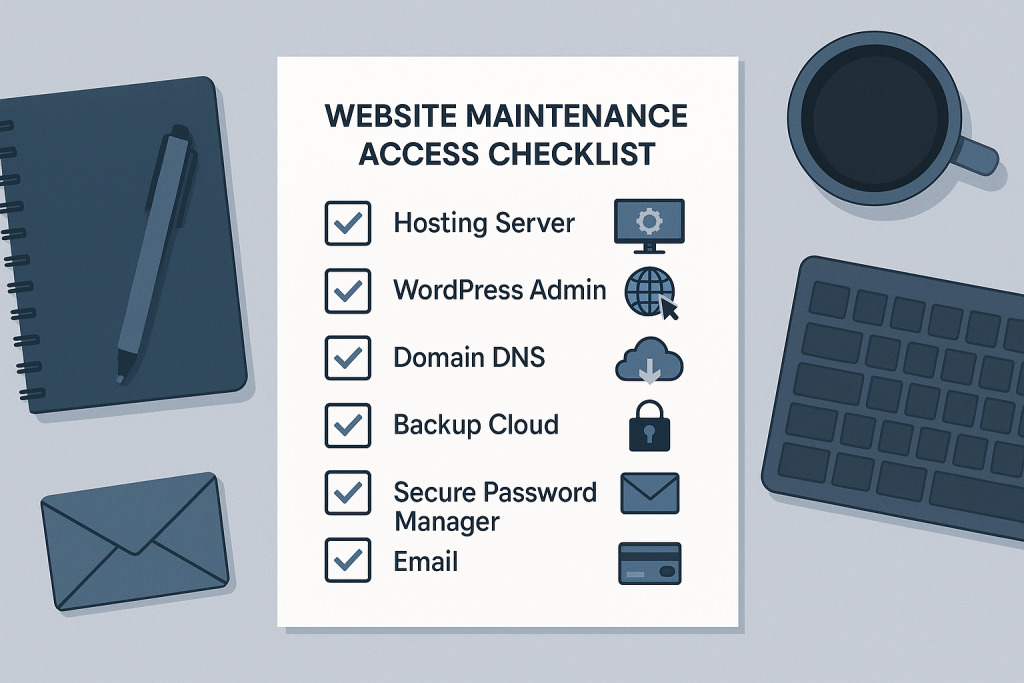
The goal is not to hand over every password you have. It is to provide the right people with the right level of access, document who owns each account, and make sure recovery options remain under your control. This is particularly important for WordPress sites, WooCommerce stores, and custom PHP applications, where a problem can involve the application, hosting, DNS, email, payment services, or a third-party integration.
If you are looking for a long-term technical contact rather than a one-off repair, see Website Maintenance Support. The checklist below will help you prepare for that relationship properly.
Why maintenance access needs planning
Most maintenance delays are not caused by the update itself. They happen because nobody can reach the right hosting account, an old developer owns the domain login, two-factor authentication goes to an unused phone, or it is unclear which payment gateway is live.
Good access preparation gives the maintenance team enough visibility to investigate and act while protecting your business accounts. It also reduces the risk of making a well-intended change in the wrong environment. For example, a provider may need to verify PHP settings in hosting, review WordPress logs, clear a server cache, or inspect a failed webhook. None of that should depend on one former contractor being available.
Before sharing access, decide who is the account owner internally. That person should retain recovery email access, billing authority, and the ability to remove users. A maintenance provider can be an authorised technical user without becoming the sole owner of critical business accounts.
Website maintenance access checklist
1. Hosting or server access
Hosting access is often the most important item. It allows a technical provider to check server resources, PHP versions, error logs, cron jobs, backups, SSL settings, and application files when appropriate.
- Hosting control panel URL and a named user account
- Server type and provider, if known
- SSH or SFTP access where the hosting setup supports it
- The relevant site or server identifier when one account contains multiple sites
- Any restrictions imposed by managed hosting, firewalls, or IP allowlists
Avoid sharing one generic owner password if the host supports additional users. Create an individual technical account with the permissions required for maintenance. This makes access easier to audit and revoke later.
2. WordPress or application administrator access
For WordPress, create a separate administrator account for the maintenance provider rather than sharing a personal login. A named account makes it clear who made changes and means your own access is not disrupted if permissions need adjustment.
For a custom PHP application, provide the appropriate administrative route, role, and test account where relevant. Explain whether the system has separate dashboards for content, orders, customers, or reporting. A provider does not necessarily need full customer-data access to check a technical issue, so use the most limited role that still enables the required work.
3. Domain and DNS access
Domain access is not required for every routine task, but it becomes essential when DNS records, email delivery, redirects, or SSL validation need attention. Identify the domain registrar and the DNS provider, which may be different companies.
- Registrar account owner and recovery email
- DNS management location
- Nameservers in use
- Whether a CDN, proxy, or security service manages DNS records
- Any approval process for DNS changes
Keep domain ownership with the business. If DNS access cannot be delegated, agree on a process for proposing and approving changes. This is safer than sharing the primary account credentials by email.
4. Backup location and restoration process
“We have backups” is useful only if someone can find them and restore them. Record where backups are stored, how often they run, how long they are retained, and whether they cover both site files and the database.
Also note who can initiate a restore. A restoration can overwrite newer orders, content, or customer changes, so it should not be a reflexive first response to every issue. Maintenance work is safer when the provider can assess the fault, confirm the likely impact of a rollback, and choose the smallest appropriate recovery step.
5. Email, transactional email, and forms
Website email frequently relies on a separate service. Contact forms, password resets, order notifications, and invoice messages can fail even while the website appears normal.
List the services responsible for outgoing email and any connected form tools. The provider may need a technical user account, API key access, or read-only event logs to diagnose delivery problems. Never paste API keys into ordinary email or a public support ticket. Use an approved password manager or another secure sharing method.
6. WooCommerce payments, shipping, and integrations
For a store, document the services that affect buying and fulfilment. This does not mean giving unrestricted financial-account access by default. It means identifying the live integrations and agreeing on how technical troubleshooting access will be provided if needed.
- Payment gateway names and the account owner
- Shipping, tax, inventory, ERP, or fulfilment integrations
- Subscription, booking, membership, or licensing tools
- Analytics, consent, tag-management, and advertising connections
- Any external API that is business-critical
Include whether the site has a staging environment and whether it uses sandbox credentials for payments. Live payment credentials should be tightly controlled. In many cases, logs, webhook status, and limited technical access are enough to investigate a problem.
Provide context, not just credentials
Credentials tell a maintainer where to log in. Context tells them what matters. A short handover note can prevent incorrect assumptions and reduce the time spent tracing normal behaviour.
Include the following where available:
- The website URL and the main purpose of the site
- Key user journeys, such as checkout, enquiry forms, account registration, or booking
- Business-critical periods, campaigns, and expected traffic peaks
- Known recurring issues or areas where custom code exists
- A list of previous developers or agencies, if they still manage any service
- The location of source-code repositories and deployment notes for custom projects
- Who should approve planned changes and who should be contacted for urgent issues
Do not worry if you do not know every plugin, server setting, or integration. A competent technical review can establish a baseline. The useful starting point is honest information about what you know, what changed recently, and which parts of the website are most important to the business.
Use secure sharing and least-privilege access
A website maintenance access checklist should improve security, not weaken it. Use individual accounts wherever possible, enable two-factor authentication, and remove access when a working relationship ends. A password manager with controlled sharing is usually better than sending passwords in chat messages or spreadsheets.
Apply least privilege: grant only the permissions needed for the agreed scope. A content editor does not need hosting access; a maintenance provider may not need access to your bank account; and a DNS change may require a separate approval. Review permissions periodically, especially after staff or supplier changes.
It is also sensible to record the date access was granted and where it was granted. This creates a simple audit trail and makes future handovers less stressful.
What to do if you cannot access an old account
It is common for websites to outlive the people who built them. If an old agency or employee controls hosting, domain, or third-party services, begin account recovery early. Gather invoices, company details, domain registration evidence, and any available recovery email access. Contact the provider through its official support channel and follow its ownership-recovery process.
Do not make rushed production changes merely because access is incomplete. First establish what is controlled, what is still working, and which account is the highest priority to recover. In many cases, the immediate maintenance work can begin with application and hosting access while ownership issues are resolved carefully.
Turn the checklist into a maintenance baseline
Once access and context are in place, maintenance becomes more predictable. The next step is to document the current state: active versions, backup status, key integrations, monitoring, known risks, and the process for applying and verifying changes. That baseline helps distinguish a new fault from an older condition and supports safer decisions over time.
For the routine work that follows onboarding, use this website maintenance checklist for WordPress and WooCommerce sites. It complements this handover guide by covering the recurring checks that help keep a site stable.
Want ongoing support for your website or store?
Start by gathering the accounts and details you can access today. A maintenance provider can then identify gaps, establish a safe baseline, and agree on sensible permissions and communication routes. The objective is simple: fewer avoidable delays, safer changes, and a reliable technical path when your website needs attention.