
When a live website feature fails, the first message you send can affect how quickly the real problem is understood. A vague report such as “the site is broken” is completely understandable under pressure, but it leaves important questions unanswered: What changed? Who is affected? Can the problem be repeated? Did it begin at a particular time?
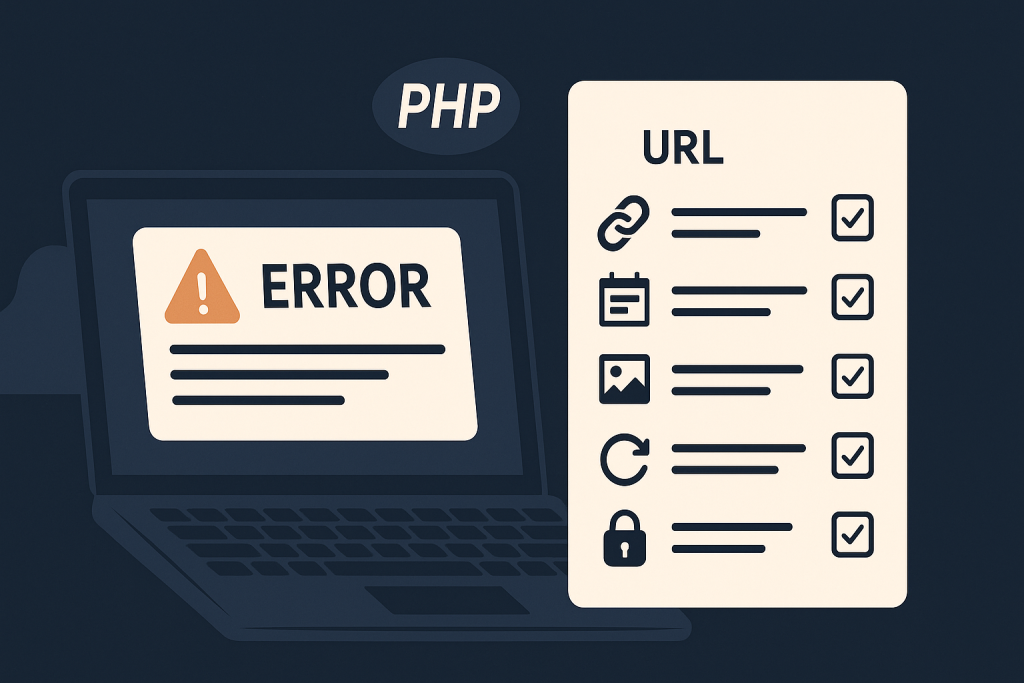
This website bug report checklist helps you collect the useful facts before asking for technical help. It is not a requirement to diagnose the issue yourself. The purpose is to give a developer a reliable starting point, reduce avoidable back-and-forth, and preserve evidence that may disappear after caches clear, settings change, or another person attempts a fix.
If customers cannot use an important part of the site, admin access is unavailable, payments are affected, or the site is down, use this information when requesting Emergency Website Bug Fixing. For a live incident, send the initial facts promptly rather than waiting to produce a perfect report.
Start with a plain-language summary
Open the report with one or two sentences that explain the business-facing problem. Technical terms are helpful when you have them, but a clear description of the outcome is more valuable than a guess about the cause.
For example:
- “Customers can add products to the cart, but clicking Place Order returns them to checkout without creating an order.”
- “The public homepage shows a blank page, while some internal pages still load.”
- “Editors can log in, but saving any page changes returns an error.”
- “The contact form submits successfully on screen, but no emails have arrived since this morning.”
Avoid framing an assumption as a fact. “The payment gateway is broken” may turn out to be a browser script error, a failed webhook, a caching rule, or a server-side issue. A better version is: “Card payments fail after the customer clicks Place Order; the visible message is ‘Unable to process payment.’”
State the impact and urgency
Technical severity is not always the same as business impact. A small visual defect may be urgent during a major campaign, while an error on a rarely used internal page may be less time-sensitive. Explain what visitors or staff cannot do and roughly how widely the issue is affecting them.
Include answers to these questions:
- Is the whole site unavailable, or only a page, feature, or user journey?
- Are visitors, logged-in customers, administrators, or all users affected?
- Does the problem stop sales, lead capture, account access, bookings, publishing, or another critical process?
- When did you first notice it?
- Is the issue still happening now?
- Is there an active promotion, deadline, launch, or high-traffic period involved?
Site down or critically broken?
Say so immediately and put it at the top of the report. Examples include a full outage, a white screen, repeated server errors, an inaccessible admin area during a live business need, or a failed checkout. Include the affected URL and whether you can reproduce the failure in another browser or device. Do not assume that a page loading for you means the issue has ended; cached pages and logged-in sessions can behave differently from a new visitor session.
Give the exact URL and affected path
“Checkout is broken” is useful context, but the exact location is better. Copy and paste the full address of the page where the failure begins. If the problem occurs across several pages, list a few examples and identify the most important one.
Also explain the route a user takes before reaching the problem. For instance:
- Visit the product page.
- Add the item to the cart.
- Open the cart.
- Proceed to checkout.
- Enter an address and select a payment method.
- Click Place Order.
These reproduction steps are especially important for bugs that appear only after a sequence of actions. They help distinguish a single faulty page from a problem in a wider flow.
Record what you expected and what happened instead
Every useful bug report compares the expected result with the actual result. Keep both descriptions specific.
- Expected: The form should show a confirmation message and send the enquiry to the sales inbox.
- Actual: The form reloads, no confirmation appears, and no enquiry arrives.
Include the complete visible error text exactly as it appears. A screenshot is helpful, but copied text is easier to search in logs and code. If an error has a reference number, request ID, order ID, or timestamp, preserve it.
Capture evidence before it changes
Live problems can be intermittent. A cache purge, an automatic retry, a plugin change, or a hosting adjustment may change the symptoms. Capture what you can without exposing customer data or credentials.
Useful evidence may include:
- Full-page screenshots showing the browser address bar and error message.
- A short screen recording for multi-step issues, such as a checkout loop or failed save action.
- The date, time, and time zone when the error occurred.
- Browser name and version, device type, and whether you were logged in.
- Relevant order, transaction, form submission, or account reference numbers, shared through an appropriate private channel.
- Server or application error messages that you can safely access.
Redact passwords, payment card details, session tokens, API keys, private customer addresses, and other sensitive information before sharing screenshots or exports. Do not paste credentials into a general support message.
A recent change does not automatically cause a bug, but it gives an investigator a useful timeline. Mention changes made shortly before the issue started, including changes by other team members, agencies, hosts, and automated systems.
Your list can include:
- Plugin, theme, extension, framework, or core updates.
- New code, snippets, templates, integrations, tags, or tracking scripts.
- Hosting, PHP, database, DNS, SSL, firewall, CDN, or cache changes.
- Payment, email, shipping, tax, CRM, or third-party service configuration changes.
- Content, product, pricing, form, or account-permission changes.
If possible, state when the change happened and who made it. Be equally clear if no known change occurred. Problems can arise from scheduled tasks, expired credentials, external service failures, traffic spikes, or delayed effects of an earlier update.
Explain what has already been tried
Documenting previous actions prevents duplicated work and helps avoid confusing the timeline. Keep this section factual rather than defensive. Include actions such as clearing a cache, disabling an extension, restoring a backup, changing a setting, switching a PHP version, or contacting the hosting provider.
For each action, note what happened afterward. For example: “Cleared the site cache at 14:10 UTC; the homepage began loading, but checkout still failed.” This is much more useful than simply saying “we tried everything.”
In an urgent situation, avoid repeatedly changing settings, installing unverified tools, or disabling multiple components at once on production. That can overwrite clues, create new failures, and make it harder to identify the original cause. If a safe temporary workaround is in place, describe it clearly so it is not mistaken for a permanent solution.
Prepare access details safely
A developer may need access to the website admin area, hosting panel, error logs, deployment system, or a relevant third-party service. Do not send passwords in the same message as the report or in an unsecured document.
Instead, explain what access is available and use an approved secure sharing method. Where practical, create a temporary account with only the permissions needed for the investigation. Note any restrictions, such as multi-factor authentication, IP allowlisting, maintenance windows, or a requirement to contact a particular person before making live changes.
If access cannot be provided immediately, the report is still worthwhile. URLs, timestamps, screenshots, visible errors, and a clear reproduction path can allow an initial assessment to begin.
Copy-and-paste website bug report template
Use this short template when reporting an issue:
Summary: [What is failing in plain language?]
Business impact: [Who is affected and what can they not do?]
Urgency: [Is the site down, is checkout affected, or is there a deadline?]
Affected URL(s): [Full URLs]
Started: [Date, time, and time zone]
Steps to reproduce: [Numbered steps]
Expected result: [What should happen?]
Actual result: [What happens, including exact error text?]
Evidence: [Screenshots, recording, request IDs, safe log excerpts]
Recent changes: [Updates, deployments, configuration or hosting changes]
Actions already taken: [What was tried and the outcome]
Available access: [Admin, hosting, logs, third-party services; share securely]
Frequently asked questions
Do I need to know the technical cause before reporting a website bug?
No. It is better to report the observable symptoms accurately than to guess at the cause. A URL, timestamp, expected result, actual result, and reproduction steps are a strong starting point.
What if I cannot reproduce the problem myself?
Report who saw it, when it happened, where it happened, and any evidence available. Intermittent issues may still leave clues in error logs, transaction records, browser reports, or monitoring data.
Should I send login credentials with my first report?
No. State what access can be made available, then share credentials only through a secure approved method. Temporary least-privilege access is preferable where possible.
A clear report creates a faster starting point
A good website bug report does not need to be long or highly technical. It needs to be accurate, time-aware, and focused on what users experience. Preserve the URL, error, timing, scope, recent changes, and actions already taken. Those details make it easier to assess the impact, reproduce the failure, and investigate without unnecessary guesswork.
When the issue affects a business-critical part of a live site, send the key facts quickly and request Emergency Website Bug Fixing rather than continuing to make untracked production changes.