
When a live website fails, the pressure to try every possible fix is understandable. It is also one of the fastest ways to lose useful clues, create a second problem, or make it harder to restore a working service. A clear website incident checklist gives you a safer order of operations: protect customers, record what is happening, control changes, and provide the information needed for focused technical work.
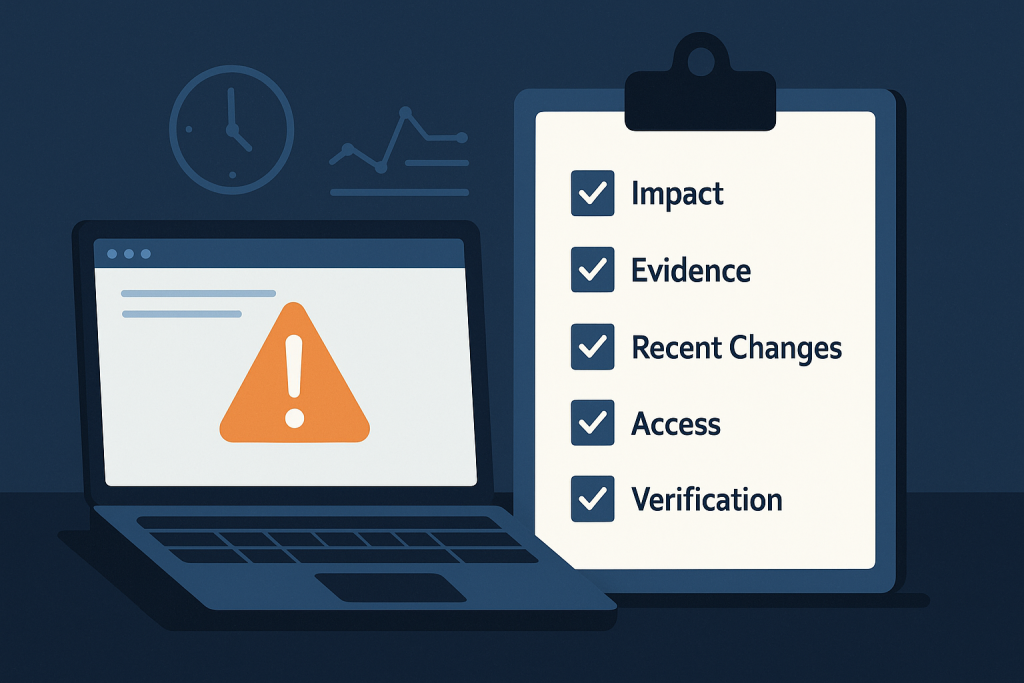
This checklist is designed for customer-facing faults such as pages returning errors, forms or booking flows failing, login issues, missing content, checkout interruptions, or a site that is partly or fully unavailable. If the fault is affecting revenue, leads, active users, or a time-sensitive launch, the appropriate next step may be Emergency Website Bug Fixing rather than continued trial-and-error on production.
1. Confirm the incident from more than one viewpoint
Before assuming the whole site is down, establish exactly what is failing. Test the affected URL in a private browser window and, where practical, on another connection or device. This helps separate a real visitor-facing incident from a local browser session, account permission, cached page, or office-network issue.
Record the result in plain language. For example:
- The homepage loads, but the contact form returns an error after submission.
- Product pages work, but customers cannot complete checkout.
- Logged-out visitors see an error, while administrators can still access the dashboard.
- The site loads intermittently, with some requests returning a server error.
Include the exact URL, the time you tested it, the device or browser used, and whether the behaviour is consistent. This turns “the website is broken” into a reproducible report.
2. Assess business impact before changing anything
Technical severity and business impact are related but not identical. A cosmetic layout problem may be visible but tolerable; a single failed checkout step can be far more costly. State what users cannot do and who is affected.
Use these questions to assess impact:
- Can visitors reach the website at all?
- Can prospects submit an enquiry, make a booking, sign in, or purchase?
- Are payments being accepted but orders, confirmations, or fulfilment records missing?
- Is the problem limited to one page, country, user role, device type, or payment method?
- Is there an active campaign, launch, event, or seasonal sales period increasing the urgency?
- Is there any indication of unauthorized access, suspicious files, or unexpected account activity?
Do not rely only on analytics or a monitoring alert. Check the real user journey that matters to the business. For an online store, that generally means moving from product selection through checkout to the confirmation page. For a lead-generation site, it may mean testing the primary contact or quote request flow.
3. Preserve the evidence
A website incident can leave behind clues that disappear after a cache purge, deployment, rollback, restart, or repeated testing. Capture evidence before taking broad corrective action. Screenshots should show the full browser window where possible, including the URL and visible error text. Copy exact error messages rather than paraphrasing them.
Useful evidence includes:
- The affected URLs and the steps required to reproduce the failure.
- Screenshots or screen recordings of the failed journey.
- The first known time of the issue and the most recent successful test, if known.
- Relevant error messages, reference IDs, and HTTP status codes.
- Recent alerts from uptime, server, payment, email, or security tools.
- A list of affected customer reports, without sharing unnecessary personal data.
A timestamp matters. It allows a technical reviewer to compare the report with application logs, server logs, deployment records, and third-party service events around the same period.
4. Write down what changed recently
Many incidents follow a change, but the change is not automatically the root cause. Still, a short timeline is extremely valuable. List all relevant activity from the previous day or two, and include changes made by developers, marketers, hosting providers, and automated systems.
Check for:
- Code releases, theme edits, configuration changes, or database work.
- Plugin, module, framework, or dependency updates.
- Hosting migrations, DNS changes, SSL certificate renewals, or PHP setting changes.
- Cache, CDN, firewall, security, or optimisation rule changes.
- New integrations, webhooks, payment settings, form settings, or API credentials.
- Scheduled jobs, imports, bulk edits, or unusually high traffic.
Be specific about timing. “A plugin was updated this week” is less useful than “an update was installed at approximately 14:30, and checkout failures were first reported at 14:45.” Avoid rolling back several unrelated items at once. That can obscure the cause and introduce data inconsistencies.
5. Stabilise customer-facing communication
While the incident is being investigated, reduce confusion for customers and staff. The right response depends on the issue. If an entire service is unavailable, a short maintenance message may be better than exposing a raw technical error. If only one route is affected, offer a practical alternative: a telephone number, email address, or another approved way to complete the action.
Keep messages factual. Do not promise a restoration time unless it is confirmed. Internal teams should use one incident owner or shared update channel so support, sales, and technical contacts are not working from conflicting information.
For transaction-related faults, avoid telling customers to retry repeatedly if that could create duplicate charges or duplicate orders. Instead, record the time, payment method, and visible outcome, then verify the underlying status before advising a retry.
6. Pause non-essential production changes
During an active incident, stop routine updates, content publishing, marketing integrations, and optional configuration work until the site is stable. This is not about freezing all activity forever; it is about reducing moving parts while the cause is unknown.
Also avoid these common reactions:
- Disabling multiple extensions or modules at random.
- Clearing every cache layer without first recording the problem.
- Applying copied code snippets directly to the live site.
- Restoring an old backup without considering new orders, form entries, or content changes.
- Changing server settings simply because an error message mentions memory or PHP.
Each action may be appropriate in a controlled diagnosis, but it should be intentional and recorded. If a change is made, note who made it, when, what was changed, and whether the observed behaviour changed.
7. Prepare safe access for investigation
Technical troubleshooting often slows down because access is incomplete or shared insecurely. Prepare the required access routes, but use your organisation’s approved secure-sharing method. Do not place passwords, secret keys, or full customer records in an email, chat transcript, or public ticket.
Depending on the stack, useful access may include the site administration area, hosting control panel, secure file access, deployment platform, error logs, and relevant third-party dashboards. Provide the hosting provider name, the domain involved, and any restrictions such as a staging environment, maintenance window, or change-approval process.
It also helps to identify one person who can answer questions and approve narrowly scoped changes. This avoids delays when an investigator needs confirmation that a proposed fix is safe to apply.
8. Give the technical contact a concise incident brief
A good incident brief makes a complex problem easier to triage. It does not need to be long. Use this template:
- Problem: What fails, in user terms?
- Impact: Who is affected and what business action is blocked?
- Start time: When was it first noticed, and when did it last work?
- Scope: Which URLs, devices, user roles, regions, or payment methods are involved?
- Evidence: Exact errors, screenshots, reference IDs, and reproduction steps.
- Recent changes: Releases, updates, configuration work, migrations, or vendor changes.
- Actions already taken: Include tests, reversions, cache clears, and temporary workarounds.
- Access and contacts: Available systems, secure access route, and decision-maker.
This format is more useful than a stream of screenshots or a vague statement that the issue “started suddenly.” It also prevents duplicated testing and helps protect live data while the issue is traced.
9. Verify recovery using the original failure path
When a change appears to fix the incident, test the original path again. Do not stop at “the page loads.” Verify the action that was failing: submit the form, complete the booking, log in with the affected role, or proceed through checkout using a controlled test where appropriate.
Then check for side effects. A working front end does not necessarily mean background emails, payment callbacks, order creation, inventory updates, or admin workflows are working correctly. Review error logs and monitoring after the fix, and confirm that customer reports have stopped.
Finally, record the outcome: cause if known, fix applied, validation performed, and follow-up work needed. That record turns a stressful incident into useful prevention work later.
Website incident checklist: quick version
- Confirm the fault from more than one viewpoint.
- Measure the customer and business impact.
- Capture exact errors, screenshots, URLs, and timestamps.
- Document recent changes and a short incident timeline.
- Communicate a factual customer-facing fallback if needed.
- Pause non-essential live changes.
- Prepare secure access and a clear technical contact.
- Send a concise incident brief.
- Test the original failed journey after a fix.
- Document the resolution and follow-up actions.
Frequently asked questions
Is a site down or critically broken?
Start by checking whether the failure affects all visitors or only a specific route, user type, device, or location. A site can be critically broken even when the homepage loads if customers cannot pay, submit important forms, access an account, or complete another core action.
Should I restore a backup immediately?
Not automatically. A backup restore can remove recent orders, submissions, content, or configuration changes, and it may not address the actual cause. Preserve evidence, identify the change timeline, and assess the data implications before choosing a rollback or restore.
What information is most useful during an urgent website incident?
The most useful information is the exact failed URL, clear reproduction steps, timestamps, error text, customer impact, recent changes, and a record of actions already taken. This gives a technical reviewer a reliable starting point without guesswork.
A calm, structured response will not solve every underlying fault by itself. It does, however, reduce avoidable risk and helps move an urgent website issue from confusion toward a focused, verifiable fix.