
A website rollback during an outage can restore a broken service quickly—but it is not automatically the safest first move. Reverting a deployment, plugin release, theme change, configuration edit, or server setting may bring pages back online. It can also introduce new problems if the live site has accepted orders, form submissions, account changes, or other data since the change went live.
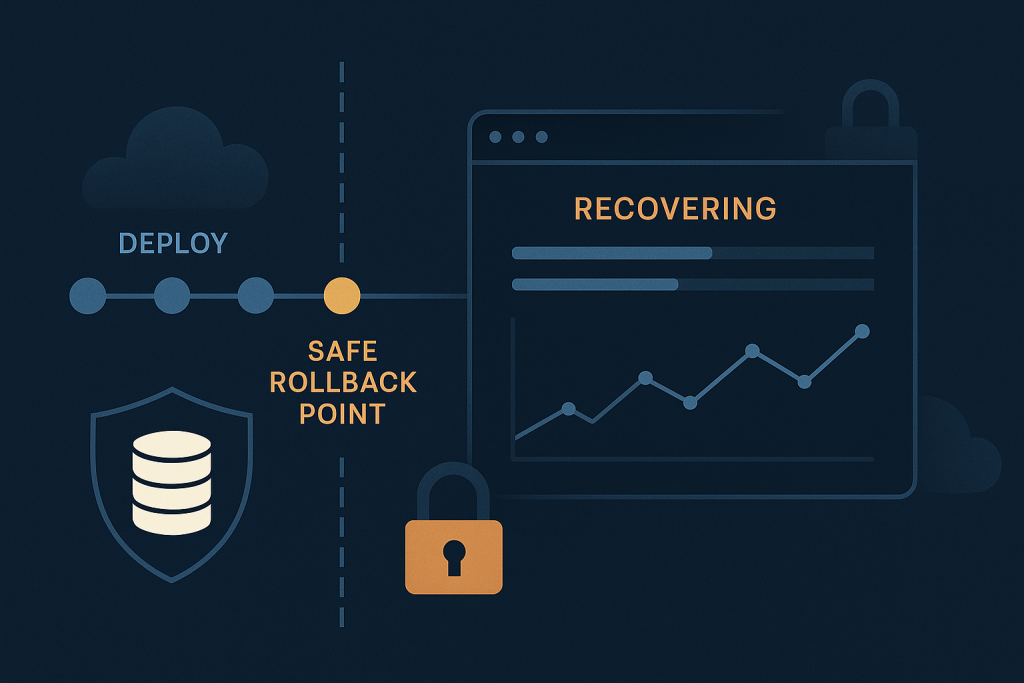
The practical goal is not simply to get back to an earlier version. It is to restore the most important customer journey with the least additional risk. If the site is down, checkout is failing, or a critical workflow has stopped, Emergency Website Bug Fixing can help isolate the failure and apply the safest focused recovery path.
What a rollback actually reverses
“Rollback” can mean several different actions. Knowing which layer changed matters because each one carries different consequences:
- Application code rollback: restoring the previous release of custom code, a plugin, a theme, or compiled assets.
- Configuration rollback: returning environment values, feature flags, web-server rules, cache settings, payment settings, or integration credentials to a previous state.
- Database rollback: restoring data or schema from a backup. This is usually the highest-risk option on an active website.
- Infrastructure rollback: moving back a PHP version, container image, hosting configuration, or server-level change.
A code rollback is often reversible and contained. A database restore can overwrite legitimate new data. Treating both as the same kind of action is one of the easiest ways to turn a short outage into a longer recovery project.
When a website rollback during an outage is a good option
A rollback is usually worth considering when there is a clear timeline: the website worked, a known change was made, and the failure began immediately afterward. The closer the relationship between change and failure, the more useful a controlled reversal may be.
Common examples include:
- A new release causes fatal errors or blank responses across key pages.
- A deployment introduces broken assets, missing files, or incompatible dependencies.
- A newly enabled feature flag breaks a checkout, login, booking, or lead form flow.
- A configuration change blocks access to a required external service.
- A server-level change causes the application to fail before it can respond normally.
In these situations, rolling back the exact recent change can be safer than attempting a large number of live edits under pressure. It narrows the variables, restores a known working state, and gives the team room to investigate properly.
When you should not roll back immediately
Do not assume that the latest release caused the outage simply because it was the most recent event. A payment gateway outage, expired certificate, DNS change, hosting failure, exhausted disk space, database issue, or third-party API problem can happen at the same time as a deployment. Reverting code will not repair an unrelated service failure.
Pause before a rollback when:
- The cause is still unknown and there is no evidence connecting the failure to a release.
- The problem affects only one external dependency or a narrow group of users.
- The release included database migrations that older code cannot safely use.
- The site has processed orders, registrations, payments, or content changes since the release.
- The old version depends on credentials, APIs, or infrastructure that are no longer available.
- A rollback would undo a security patch without another compensating measure.
These are not reasons to accept an outage. They are reasons to establish the recovery path before making irreversible changes.
Assess the impact before changing production
Start with the business-critical question: what is failing for real users right now? A broken visual element and a failed payment flow require different urgency and different safeguards.
Check the affected paths directly:
- Can visitors load the homepage and important landing pages?
- Can customers log in, add items to a cart, and complete checkout?
- Are contact forms, booking forms, account functions, or dashboards working?
- Is the issue global, limited to a route, or limited to logged-in users?
- Did error rates, failed requests, or support messages begin at a known time?
Record the deployment time, the first observed failure time, recent changes, and the exact visible symptom. This short timeline is often more useful than guessing at a cause. It also makes it possible to tell whether a rollback actually improved the incident.
Check for data and state changes
Before reversing anything, identify what has changed since the release. Live systems are not static. An e-commerce store may have new orders and payment callbacks; a membership site may have new accounts; a content site may have published edits; an integration may have exchanged records with another system.
Code can often be reverted independently. Data is more complicated. For example, restoring a database backup from before the incident could remove new orders or customer updates. It might also leave an external payment provider showing a successful charge while the website no longer has the matching order record.
A safer approach is usually to preserve current data first, then decide whether a targeted repair, a forward fix, or a carefully planned rollback is appropriate. If schema migrations are involved, confirm whether the prior application version can read the current database structure. Never rely on that assumption during a live outage.
A safer rollback process
1. Preserve evidence and take a current backup
Capture application logs, error messages, deployment identifiers, and relevant configuration changes before they rotate or are overwritten. Take a current database and file backup where possible. This is not busywork: it protects the ability to recover data and compare the failed state with the restored state.
2. Choose the smallest reversible change
Prefer a narrow action that directly matches the suspected cause. Disable a new feature flag, return one configuration value, restore the immediately preceding code release, or remove one failed asset build. Avoid combining several changes at once. If the site recovers, you need to know why; if it does not, you need a clean next step.
3. Control traffic-sensitive actions
For a checkout or account workflow, consider whether a short maintenance message, queue, or temporary restriction is safer than allowing customers to submit transactions into a partially failing system. The right choice depends on the failure, but silently accepting requests that cannot be recorded correctly can create more work than a brief, clear interruption.
4. Run the rollback and watch the right signals
After reverting, check server responses, application errors, and the actual user journey. A successful deployment command is not proof that the incident is resolved. Confirm that pages render, sessions behave as expected, forms submit, and integrations respond.
5. Verify critical paths before declaring recovery
Test the smallest meaningful set of actions: homepage, a representative product or service page, login if relevant, the form or checkout path, and an order or confirmation step where applicable. Use non-destructive test data whenever possible. Then monitor for recurring errors rather than assuming the first successful page load means the site is stable.
Why cache can make a rollback look successful or unsuccessful
Caches and content delivery networks can preserve old HTML, JavaScript, CSS, redirects, and application responses. That creates confusing symptoms: one visitor sees the fixed version while another still receives an old broken asset. Conversely, a cached working page can conceal a backend failure until a user reaches an uncached action.
After a rollback, purge only the layers that need it and verify from a clean browser session. Keep in mind that broad cache clearing can increase server load during a fragile period. The aim is accurate verification, not indiscriminate flushing.
Rollback versus a forward fix
A forward fix changes the current release to repair the defect rather than reverting it. It can be preferable when the deployment includes essential security changes, irreversible schema changes, or a small, well-understood mistake. For example, one missing environment variable may be restored more safely than reversing an entire release.
A rollback is usually stronger when the release introduced a broad failure and the prior version is known to work with the current environment. A forward fix is stronger when reverting would create incompatibility or when the cause is precise and quickly testable. In either case, avoid editing production repeatedly without a clear hypothesis and a way to verify each action.
Site down or critically broken?
If users cannot access the site, complete a purchase, submit a vital form, or use a core account feature, treat the situation as a production incident. Gather the URL, the time the issue started, the latest changes, screenshots or exact error text, and any relevant hosting or deployment details. Then focus on stabilizing the affected journey before pursuing wider improvements.
A website rollback during an outage is a recovery tool, not a universal answer. Used with evidence, backups, and targeted checks, it can restore service quickly. Used as a reflex, it can obscure the real fault or compromise current data. When the impact is business-critical, a focused emergency investigation helps determine whether rollback, repair, or a temporary mitigation is the lowest-risk route.