
When WordPress changes not saving becomes the problem, it is tempting to keep clicking Update, clear a cache, or redo the same edit several times. That can make a confusing issue harder to trace. A change that does not appear on the live page is not always a failed save, and a genuine save failure is not always caused by the editor itself.
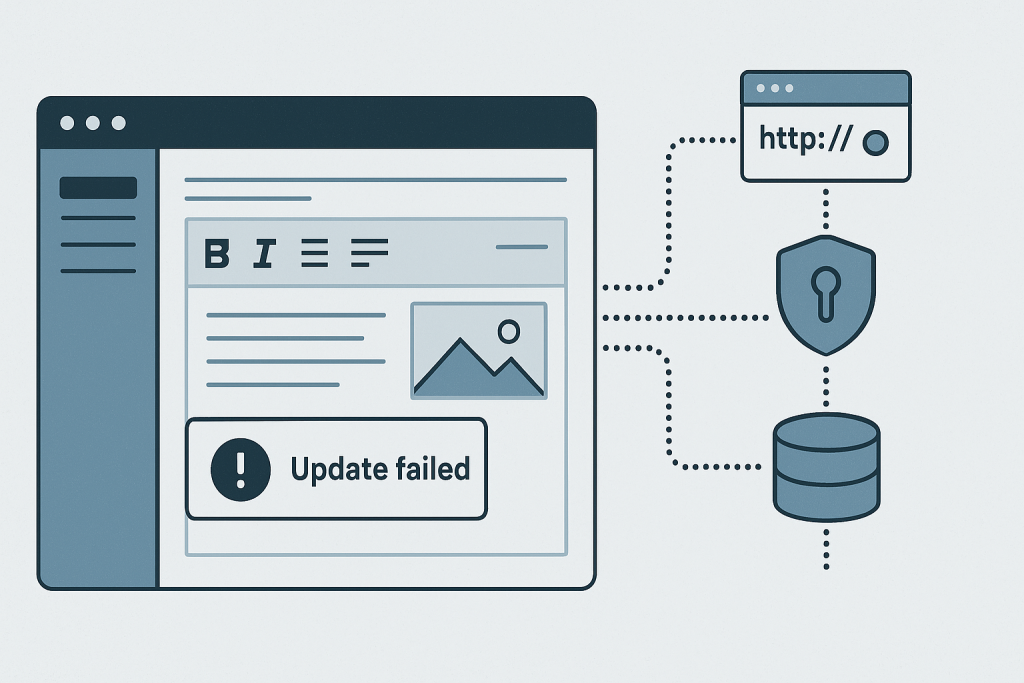
The useful first step is to separate two different situations:
- WordPress accepted the edit, but you are seeing an old cached version of the page.
- WordPress did not complete the save, publish, or settings request at all.
Those scenarios need different fixes. This guide explains how to identify the difference, what commonly blocks WordPress from saving changes, and when a focused technical investigation is safer than repeated trial and error.
If the problem is affecting important pages, site settings, forms, or a live store, see the WordPress bug fixing service for direct troubleshooting.
How to tell whether WordPress really failed to save
Start by looking at the result inside the WordPress dashboard. After editing a post or page, does WordPress show a clear confirmation such as “Post updated” or “Page updated”? Does the status remain Draft, Pending, or Scheduled when you expected it to be Published? Does the editor display “Updating failed” or “Publishing failed”?
If the dashboard confirms the update but the public page looks unchanged, do not assume the database write failed. Check the page in a private browser window or on another device. Then clear any page cache that you control, along with your browser cache. A CDN, hosting cache, optimization plugin, or reverse proxy can continue serving an older copy even though WordPress saved the new content correctly.
By contrast, if the editor gives an error, spins indefinitely, reloads with the old content, or refuses to change a setting, the issue is more likely in the request WordPress sends to save the change. That request may be blocked, interrupted, rejected, or unable to write to the database.
Common signs of a real save or publish problem
Save failures do not always look the same. Common symptoms include:
- The Update or Publish button appears to work, but the old version returns after a reload.
- The block editor reports “Updating failed” or says that the response is not valid JSON.
- A page can be edited but cannot be published.
- Menu, widget, permalink, or plugin settings revert after saving.
- Autosaves and revisions stop appearing.
- Only one content type, such as products or custom post types, will not retain edits.
- The issue affects one user account but not another administrator.
Each symptom provides a clue. For example, a failure only on product edits may point to a plugin, custom fields, or a server limit associated with that request. A failure across pages, settings, and menus is more likely to involve permissions, security controls, a server-side error, or database access.
Why WordPress changes may not save
A cache makes a saved change look missing
This is the least destructive explanation and should be ruled out first. WordPress may have saved the change while a cache continues to show an older page. There can be several layers: browser cache, WordPress caching plugin, host-level cache, CDN cache, and cached assets such as CSS or JavaScript.
Test the public URL in a private window after clearing the relevant page cache. If the dashboard shows the new content and a logged-in preview looks correct, focus on cache invalidation rather than editing the content again. Be cautious with broad cache purges on busy sites, especially when you are unsure which layer is in use.
A plugin or theme interrupts the save request
WordPress plugins and themes can modify editor screens, REST API routes, save hooks, custom fields, redirects, and permissions. A coding error or an incompatible integration can interrupt a request before WordPress completes the update.
This may happen even when the front end looks normal. The affected code may only run while a particular post type is saved, a specific field is validated, or an editor panel is loaded. A security, SEO, page-builder, custom-fields, multilingual, or workflow plugin may be involved, but naming a category is not proof of cause.
A safe investigation compares the failed action with the code that runs during it. On a staging copy, temporarily disabling one suspected component at a time can help isolate the issue. Avoid indiscriminately deactivating plugins on a live site where the effect could remove essential functionality.
The REST API or admin request is failing
The block editor relies heavily on WordPress REST API requests. If the server returns an error page, redirects the request, blocks it, or produces unexpected output, WordPress may report a failed update. A “not valid JSON response” message is often a symptom of this broader problem, not a diagnosis by itself.
Potential causes include a PHP warning printed into the response, an authentication or nonce problem, a redirect caused by an incorrect site URL, a firewall rule, or an error in custom code. Browser developer tools and server-side logs can show the failing request, response status, and message. That is much more reliable than guessing from the editor notification alone.
Security or hosting rules block the submitted data
Web application firewalls and hosting security systems sometimes block legitimate save requests when submitted content resembles a suspicious pattern. This can be more noticeable when an editor adds embedded code, a long form, unusual characters, external URLs, or content copied from another application.
A blocked request may produce a 403 error, a generic server error, or an incomplete response. Check whether the problem occurs with a short plain-text edit versus a specific block or field. Do not weaken security rules globally just to test a theory. A narrow review of the request and the relevant security event is the safer route.
Database, disk, or server resource problems prevent writes
WordPress needs a working database connection and sufficient server resources to persist changes. Database permission problems, a full disk, exhausted PHP memory, request timeouts, or a crashed database service can all interfere with saving.
These issues may also produce related symptoms: slow admin requests, failed uploads, inability to install updates, missing revisions, or intermittent errors. Server and PHP error logs are valuable here because they can distinguish an application-level problem from an infrastructure failure.
Content validation or custom-field rules reject the edit
Some sites use custom workflows that validate data before a post, product, form submission, or settings page can save. Required fields, malformed values, duplicate identifiers, permission checks, or custom hooks can reject an update. The problem may be limited to a single page because only that page contains the field or value that triggers the validation.
Try a small, reversible change such as adding and removing a short word. If that saves while a larger change does not, note what differs: a block, image, field value, shortcode, embedded script, or amount of submitted content. That observation can substantially reduce troubleshooting time.
What to check first without making the problem worse
- Record the exact symptom. Note the URL, user account, content type, time, and exact message shown by WordPress.
- Confirm whether it is a display-cache issue. Compare the dashboard, preview, private browsing window, and public page after a controlled cache clear.
- Try one small reversible edit. This helps determine whether every save fails or only a particular piece of content fails.
- Check for recent related changes. Look for new plugins, theme edits, security-rule changes, hosting migrations, or server configuration changes.
- Inspect error evidence. Review the browser request response and relevant WordPress, PHP, or server logs where available.
- Protect live content. Take a backup before changing plugins, themes, database settings, or production code.
What not to do on a live WordPress site
Repeatedly resubmitting an uncertain request can create duplicate revisions, confusing states, or accidental overwrites when multiple editors are involved. Avoid editing core WordPress files, changing database values directly, or broadly disabling security protections as a first response. Similarly, do not immediately reinstall WordPress or roll back unrelated plugins without evidence that they caused the failure.
These actions may hide the useful error signal or introduce a second issue. The better approach is to identify the precise failing action, capture the resulting error, and make a minimal tested correction.
When to get help with WordPress changes not saving
Seek technical help promptly if editors cannot publish time-sensitive content, business settings will not persist, multiple administrators are affected, or the issue is connected to orders, forms, memberships, or other customer-facing workflows. It is also sensible to ask for help when logs show PHP errors, database errors, failed REST API requests, or security blocks that are not clear to interpret.
Need help with a WordPress bug?
A reliable fix starts with reproducing the failed save, checking whether WordPress actually wrote the change, tracing the request through the browser and server, and verifying the result after the correction. That focused process is safer than treating every unsaved change as a cache or plugin problem.
For persistent editing, publishing, settings, or admin behavior problems, WordPress bug fixing can help trace the specific cause and verify that the affected workflow works again.