
What is WooCommerce bug fixing? It is the structured process of finding, understanding, and resolving problems in a WooCommerce store without creating new issues elsewhere. A bug may affect a single product page, an order email, stock handling, shipping logic, or the entire buying journey. Because an online store connects WordPress, WooCommerce, themes, extensions, payment services, and hosting, effective debugging means looking at the system as a whole rather than changing code at random.
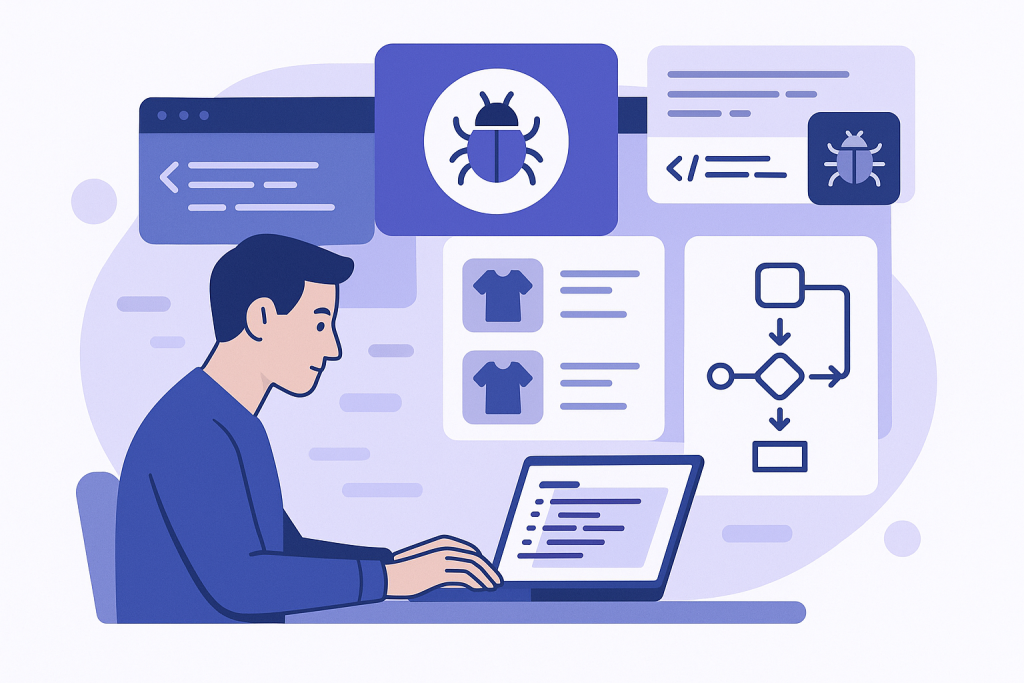
For store owners, WooCommerce bug fixing is about restoring reliable behavior. For developers, it means gathering evidence, reproducing the fault, identifying the responsible component, applying the smallest safe correction, and testing the result. If a problem is urgent or affects purchases, professional Woocommerce Bug Fixing can help establish a careful path from symptom to verified resolution.
What is WooCommerce bug fixing?
WooCommerce bug fixing is a diagnostic and repair workflow for problems in a WooCommerce-powered store. The visible symptom is not always the actual cause. For example, a checkout button that appears to do nothing could be related to a JavaScript error, a theme override, a caching layer, a payment gateway setting, an incompatible plugin, or a server-side failure. Treating the button itself without checking the surrounding evidence can waste time and make the issue harder to trace.
A useful fix normally follows a sequence:
- Describe the symptom clearly: Record what happens, where it happens, who can reproduce it, and what should happen instead.
- Reproduce the issue: Confirm a repeatable set of steps. Note whether it occurs for guests, logged-in customers, administrators, or only certain devices and browsers.
- Collect evidence: Review relevant error logs, browser console messages, WooCommerce status information, recent changes, and affected orders or products where appropriate.
- Isolate the cause: Test likely sources in a staging environment, such as a plugin conflict, a theme customization, an outdated template override, or a configuration issue.
- Apply a focused fix: Adjust the responsible setting, code, template, or integration rather than adding an unrelated workaround.
- Test the critical flow: Verify the original scenario and nearby store actions, especially the checkout, cart, account pages, order creation, and emails when they are relevant.
- Document the change: Record what was changed, why it was changed, and how the result was checked.
This approach applies to both obvious failures and subtle inconsistencies. A store may not display an error message, yet still behave incorrectly: a discount may not apply under a specific condition, a shipping method may disappear for a location, or an order status may not update after an integration event. These cases still require disciplined troubleshooting.
Common WooCommerce problems that need debugging
WooCommerce bug fixing can involve many parts of a store. Common areas include product data, variations, taxes, coupons, shipping rules, inventory, customer accounts, transactional emails, payment gateways, order management, and third-party integrations. Problems can also arise after routine changes such as updating WordPress, WooCommerce, a theme, an extension, PHP, or a custom snippet.
The checkout deserves special attention because it is where several components meet. Customer details, address validation, shipping options, tax calculations, coupons, payment methods, session data, and order creation may all interact on one page. A checkout issue may show up as an endlessly loading page, missing payment options, invalid-field messages, failed order placement, or an order that appears incomplete. The right response is to determine precisely which step fails and what the system reports at that point.
It is also important to distinguish between a defect and an expected behavior caused by configuration. A shipping method that is unavailable may be correctly excluded by its conditions. A payment method may be intentionally unavailable for a particular currency, country, cart total, or customer context. Verifying the intended business rules before changing code prevents unnecessary fixes.
What mistakes should beginners avoid with WooCommerce bug fixing?
Beginners often make mistakes because the pressure to restore a store quickly encourages broad, untested changes. The following habits can turn one problem into several.
- Editing a live site first: Direct changes to production can interrupt customers and make it difficult to compare behavior before and after a fix. Use a staging or otherwise controlled test environment whenever possible.
- Updating everything at once: A large batch of updates can resolve an issue, but it can also hide the original cause or introduce compatibility problems. Make changes in a controlled order and test between them.
- Disabling plugins without a plan: Plugin conflict testing is useful, but disabling a payment, shipping, security, or cache plugin on a live store may affect shoppers. Record each test and restore the expected configuration afterward.
- Ignoring logs and browser errors: Error messages, timestamps, request details, and console output can narrow the investigation considerably. Guessing without evidence often leads to fragile fixes.
- Changing core files: Direct edits to WordPress, WooCommerce, or plugin core files are likely to be overwritten by updates and can complicate future maintenance. Prefer supported settings, hooks, child-theme work, or a purpose-built custom plugin when code changes are needed.
- Fixing only the visible symptom: Hiding an error notice or forcing a button to display does not necessarily repair the underlying process. Confirm that orders, payments, stock, and notifications behave as intended.
- Skipping regression tests: A change that fixes one product type, user role, or payment route may affect another. Test the nearby workflows that share the same code or configuration.
- Forgetting backups and rollback: Before making meaningful changes, ensure there is a reliable recovery option and know how to reverse the change if the result is not correct.
Another common mistake is assuming that the most recently updated component is automatically at fault. It may be relevant, but the timing alone is not proof. Use it as a clue, then reproduce and isolate the issue before drawing a conclusion.
What checklist helps with WooCommerce bug fixing?
Use this practical checklist to keep WooCommerce bug fixing focused and repeatable:
- Define the issue: Write down the expected result, actual result, affected URL or screen, and exact steps to reproduce it.
- Assess impact: Identify whether the issue affects browsing, cart behavior, checkout, payments, order processing, customer communication, or administration.
- Preserve evidence: Capture error text, timestamps, screenshots, relevant order references, and recent site changes. Avoid placing private customer information in public notes.
- Check the basics: Confirm the relevant WooCommerce settings, page assignments, payment and shipping configuration, and any rules that could intentionally control the behavior.
- Review diagnostics: Inspect relevant WooCommerce logs, WordPress debugging output where safely enabled, and browser console or network errors for front-end issues.
- Reproduce safely: Use a staging environment or a carefully controlled test case. For checkout testing, use appropriate test modes and avoid creating confusion in live order records.
- Check recent changes: Review updates, new extensions, theme edits, custom code, server changes, cache changes, and integration setting changes.
- Isolate one variable at a time: Test the suspected component while keeping notes on the result. This makes it possible to identify a genuine conflict or configuration cause.
- Implement the smallest suitable fix: Make the correction in the appropriate place and avoid temporary patches that bypass the underlying logic.
- Test the original path and related paths: Re-test the reported issue, then verify related actions such as adding to cart, updating quantities, choosing shipping, completing checkout, receiving emails, and viewing the order in the admin area as applicable.
- Deploy carefully: Move verified changes to the live store during a suitable window, clear only the caches necessary for the change, and monitor the affected flow afterward.
- Document and prevent recurrence: Keep a concise record of the cause, fix, test steps, and any update or maintenance action needed later.
When to seek help with WooCommerce bug fixing
Some issues are straightforward configuration corrections. Others cross multiple systems and require more careful investigation. Consider seeking specialist help when the fault affects checkout or payments, causes repeated order-processing failures, appears after custom development, involves unclear errors, or cannot be reproduced consistently. A methodical investigation is usually safer than repeatedly applying trial-and-error changes to a live store.
In short, WooCommerce bug fixing is not simply removing an error message. It is the process of restoring correct store behavior by defining the problem, gathering evidence, isolating the cause, making a targeted repair, and verifying the customer journey afterward. That process makes fixes easier to maintain and helps protect the parts of a store that matter most.