
If a website breaks after an update, the first response should be structured troubleshooting, not random fixes. A site can appear stable for months and then fail immediately after a plugin update, theme update, CMS update, server change, or deployment. In some cases the whole website goes down. In other cases, only one key workflow fails, such as login, checkout, admin access, forms, or payment processing.
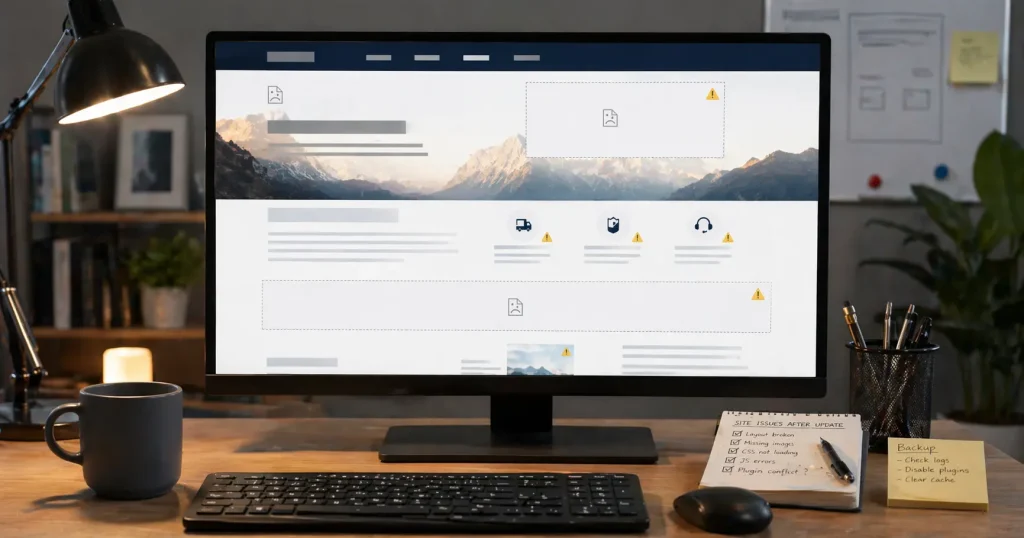
When a website breaks after an update, the visible symptom is not always the real cause. The issue may come from plugin conflicts, theme compatibility problems, custom code, PHP changes, cached assets, payment integrations, malware, viruses, or a broader server-side mismatch exposed by the update. The goal is to narrow down what changed and identify which part of the site is no longer functioning correctly.
What it usually means when a website breaks after an update
When a website breaks after an update, something in the technical stack no longer works correctly with the new version or new environment. This can happen in WordPress, WooCommerce, Magento, Laravel, Symfony, Sylius, or custom PHP systems. Sometimes the updated component is the direct cause. In other cases, the update only exposes a compatibility problem that already existed in the site.
The most important thing to understand is that update-related breakage is rarely just a visual problem. If a website breaks after an update, the underlying issue often involves code execution, plugin behavior, templates, integrations, server configuration, or security-related damage already present in the environment.
Common signs that a website breaks after an update
The symptoms can vary depending on the platform and what part of the site is affected.
- The homepage or key pages stop loading
- The site shows a critical error or white screen
- The admin area becomes inaccessible
- Checkout, payment, or cart behavior stops working
- Layouts break after a theme or plugin update
- Forms, search, or login suddenly fail
- Only one plugin feature or business workflow stops working
- The website becomes unstable, slow, or inconsistent after the update
- The site redirects unexpectedly or shows suspicious injected content
One useful clue is whether the whole site is broken or whether one specific workflow is broken after the update. That detail often makes the root cause easier to narrow down.
Why a website breaks after an update
Plugin conflicts
This is one of the most common causes when a website breaks after an update, especially in WordPress and WooCommerce environments. An updated plugin may no longer work correctly with another plugin, the active theme, or custom code.
Theme or template compatibility problems
A theme or template override may still depend on older logic. Once an update changes hooks, scripts, or rendering behavior, the design or functionality can break immediately.
Custom code no longer matches the updated environment
Code snippets, child theme changes, custom modules, edited templates, or custom plugin logic often break after updates if they rely on older application behavior.
PHP or server environment changes
Sometimes a server-side change happens close to the same time as the update. A different PHP version, memory limit issue, or server configuration mismatch can make the site appear broken after an update even when the real cause is deeper in the environment.
Cached assets and stale frontend resources
Page cache, CDN cache, minified assets, object cache, or stale frontend scripts can leave the website showing broken output after the updated environment is already live.
Malware or viruses exposed during the update
Malware or viruses can also be part of the reason a website breaks after an update. In some cases, the update exposes files, scripts, redirects, injected code, unknown users, or corrupted behavior that was already hiding inside the site. Security-related damage can make troubleshooting more complex because the visible symptom may look like a normal update failure at first.
WordPress sites that break after updates
WordPress is especially sensitive to update-related breakage because a live site often depends on plugins, themes, custom snippets, page builders, cache plugins, and hosting configuration at the same time. If the issue is specifically a WordPress site failing after an update, review the related guide on a WordPress site broken after update.
If the site shows a fatal error, white screen, or critical error message, the issue may need deeper review of plugin conflicts, PHP compatibility, theme logic, or damaged files. For that situation, the guide on WordPress critical error is a more focused starting point.
WooCommerce stores that break after updates
When a WooCommerce store breaks after an update, the problem can become urgent very quickly because checkout, payment, cart, shipping, tax, or order creation may be affected. A store can still look normal on product pages while the revenue-generating part of the site is already broken.
For store-specific troubleshooting, see the WooCommerce Bug Fix service. If the issue affects a WordPress site more broadly, see the WordPress Bug Fix service.
What to check first when a website breaks after an update
The first checks should reduce guesswork and help identify whether the issue is caused by compatibility, environment, security, or a broken business workflow.
1. Confirm exactly what changed
Did the break happen after a plugin update, theme update, WordPress update, WooCommerce update, deployment, server change, PHP change, cache change, or multiple changes at once? Timing matters because several changes in one session make the root cause harder to isolate.
2. Check whether the whole site is affected or one function only
A full site crash is different from a broken checkout, broken admin area, broken layout, broken form, or broken payment workflow. Scope matters because it tells you how deep the problem may go.
3. Review recent plugins, themes, integrations, or custom code
Look at what was updated or changed just before the site broke. In many cases, the most recent code or integration change is the first place to investigate.
4. Look for technical clues
Error messages, logs, warnings, repeatable failures, broken workflows, and browser console errors often reveal much more than the visible symptom alone.
5. Consider whether malware or viruses may also be involved
If the break behaves inconsistently, redirects appear unexpectedly, files change unexpectedly, unknown users appear, or the site was already unstable before the update, malware or viruses should be considered as one of the possible causes.
What not to do right away
- Do not update more plugins, extensions, or themes just to see what changes
- Do not make multiple uncontrolled code edits on the live site
- Do not assume the visible symptom is the real cause
- Do not ignore the possibility of malware or viruses if the behavior is unusual
- Do not keep testing risky fixes during live traffic if customer-facing workflows are already broken
- Do not leave checkout, payment, admin access, or lead forms broken while waiting to see if the issue resolves itself
When a website breaks after an update, uncontrolled trial and error often hides the real cause and makes recovery slower.
When the issue becomes urgent
A broken website after an update becomes urgent when it affects live customer experience, site access, revenue, or business-critical workflows.
- The site is down or unstable
- Admin access is blocked
- Checkout, payment, or order flow is broken
- Lead forms or login are no longer working
- The issue appeared during active traffic, a launch, or a campaign
- The site shows suspicious redirects, injected scripts, or possible security damage
If a website breaks after an update and the issue is already affecting a live business workflow, see the Emergency Website Bug Fix service.
If you are unsure whether the issue is urgent, the related article on emergency help for a broken website explains when a broken site should be treated as an immediate technical priority.
When to get direct technical help
A website that breaks after an update often needs more than surface-level troubleshooting. The cause may involve plugins, themes, custom code, PHP compatibility, payment integrations, security problems, malware, or viruses all at once. The visible symptom rarely tells the full story by itself.
If the cause is not immediately obvious, direct technical troubleshooting is usually faster and safer than continued guessing. For WordPress-specific cases, see the WordPress Bug Fix service. For WooCommerce-related order flow or checkout problems, see the WooCommerce Bug Fix service.
Need urgent help with a broken website?
If the issue is affecting customers, orders, payments, admin access, or live business operations, PHP Rescue can help troubleshoot the problem directly.
Frequently asked questions
Why does a website break after an update even if it worked before?
In many cases, the update exposes a compatibility issue that already existed in plugins, themes, custom code, integrations, security state, or the server environment. The site may have been close to failure before the update happened.
Can malware or viruses make a website break after an update?
Yes. Malware or viruses can already be present in the site and become more visible after an update changes file behavior, scripts, redirects, or execution paths.
Does a website break after an update always mean the update itself is bad?
No. Sometimes the update is only the trigger that exposes a deeper issue in compatibility, code quality, security, or server configuration.
Should I rollback immediately if a website breaks after an update?
A rollback may help in some cases, but it should be done carefully. If the issue involves database changes, checkout data, payment activity, or security damage, a blind rollback can create new problems.
When is a broken website after update an emergency?
It becomes an emergency when the issue affects site access, customers, revenue, checkout, payments, admin access, leads, or business-critical workflows.
If a website breaks after an update, the most useful response is structured troubleshooting. The priority is to identify what changed, narrow down which part of the site is failing, check for security-related causes when needed, and decide whether the issue is safe to inspect further or already urgent enough to need direct technical help.