
PHP error log troubleshooting is often the fastest way to move from “the site is broken” to evidence of what actually failed. A blank page, a generic HTTP 500 response, or an API request that suddenly stops working can have many causes. The browser usually shows only the symptom. Server and application logs are where the failed file, message, call path, and timestamp may appear.
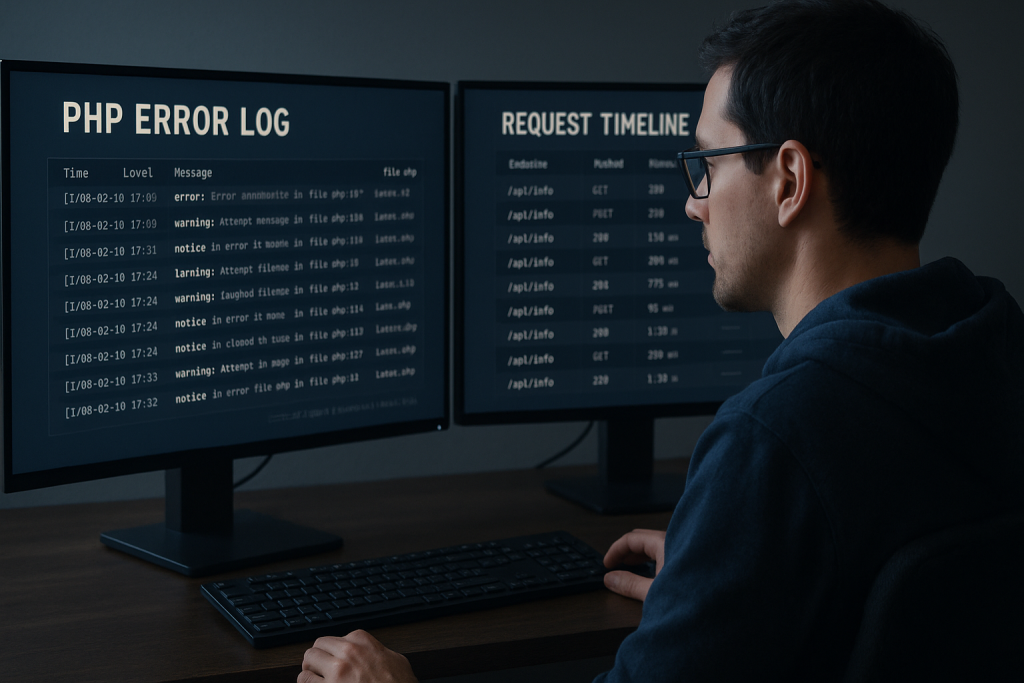
This guide explains how to gather and interpret that evidence without turning on public debugging or making speculative changes in production. It applies to custom PHP applications as well as stacks that include a framework or CMS.
If the issue is affecting a live workflow and you need direct technical help, see the PHP Bug Fixing service. For now, start by preserving the clues the failing request has already left behind.
What PHP error log troubleshooting means
Error-log troubleshooting is the process of matching a visible failure to the server-side event that caused it. A useful investigation answers four questions:
- What request failed? Record the page URL, endpoint, command, or background job involved.
- When did it fail? Get the most precise time possible, including timezone if known.
- What did the server report? Find the related PHP, web-server, application, or process-manager entry.
- What changed or differs? Compare the environment, deployment, dependency, input, configuration, or external service involved.
Logs do not always name the ultimate root cause in one line. They do, however, narrow the investigation. A fatal error may identify an absent class. A database exception may identify a failed query or connection. A warning occurring immediately before a fatal error can reveal the invalid assumption that led to the crash.
Start with a reproducible symptom and timestamp
Before opening a log file, reproduce the issue once if it is safe to do so. Note the exact URL or action, the account type used if relevant, the approximate time, and what happened in the browser or client. Avoid repeatedly submitting orders, forms, or other state-changing actions merely to create log entries.
A precise timestamp matters because busy applications may write thousands of unrelated messages. If a customer reports that an API call failed around 14:06 UTC, search for that short window rather than reading an entire log from top to bottom. Also consider that web-server, PHP, and application logs may use different timezones.
When the browser shows a 500 error, capture the response headers or request ID if one is available. A request ID, correlation ID, transaction ID, or queue job ID can connect entries across multiple systems.
Where PHP errors may be recorded
There is no universal log path. The location depends on the operating system, hosting panel, web server, PHP runtime, and application configuration. Common places include:
- PHP runtime logs, configured through PHP settings such as error_log.
- Web-server logs, such as Apache or Nginx error logs, which can report upstream or FastCGI failures.
- PHP-FPM logs, particularly useful when PHP runs through PHP-FPM rather than as an Apache module.
- Application logs, which may capture handled exceptions, domain-specific failures, and request context.
- Hosting control-panel logs, sometimes labelled Error Log, Errors, Raw Logs, or PHP Logs.
- Container or platform logs, where output may be collected by the hosting environment rather than written to a conventional file.
Check the application’s configuration and the active PHP configuration rather than assuming a path. A command-line PHP process can use a different configuration and log destination from the PHP process serving web requests. This distinction is important when a scheduled task fails but the website itself works.
How to read the most useful parts of an error entry
A complete entry commonly includes a date, severity, message, file path, and line number. Some logs also include a stack trace. Read the entry as structured evidence, not just as an alarming message.
Severity
Fatal errors and uncaught exceptions commonly stop the current request, so they are high-priority evidence. Warnings, notices, and deprecations do not always stop execution, but they can still show a compatibility problem or bad input that later causes a more serious failure.
Do not dismiss warnings automatically. A message about an undefined array key, a failed file operation, or a deprecated function may be the first sign of an issue introduced by an environment or dependency change.
Message
The message usually describes the immediate failure: a missing class, undefined function, invalid argument type, exhausted memory limit, denied permission, unreachable database, or failed include. It tells you what PHP encountered, not necessarily why the application reached that point.
File and line number
The file and line identify where the runtime detected the problem. They are a starting point, not an instruction to edit that exact line. For example, a type error on a method call may be caused by invalid input created earlier in the request. If the file belongs to a vendor package, changing it directly can make a future update harder and may conceal the actual integration issue.
Stack trace and preceding entries
A stack trace shows the sequence of calls that led to the error. Read from the application entry point toward the failing call, looking for custom code, request parameters, queued jobs, or integration boundaries. Then read several entries immediately before and after the error. The first exception is often more useful than the later cascade of failures it causes.
Correlate PHP logs with the rest of the stack
A PHP failure may be only one layer of a larger request path. If PHP logs are empty, expand the search carefully:
- Check whether the request reached the web server and whether it returned an upstream error.
- Check PHP-FPM or runtime logs for worker crashes, timeouts, or configuration errors.
- Review application logs for caught exceptions that PHP itself did not write as fatal errors.
- Check the database, cache, queue, payment, webhook, or API integration involved in the failed flow.
- Compare the relevant deployment time, environment settings, and dependency versions with the last known working state.
This is especially useful for intermittent failures. A timeout might originate in a third-party API; a database connection problem might reflect credentials, network access, or resource exhaustion; and an HTTP 500 response might occur before application routing is reached.
Do not expose debug output to visitors
It is tempting to enable full error display when a page is failing. On a public production site, that can expose file paths, software versions, environment values, database details, or code structure. These details are useful to an attacker and confusing to visitors.
Prefer logging errors privately and reviewing them through authorized server or hosting access. If a temporary diagnostic setting is necessary, use the narrowest safe scope, avoid putting secrets in logs, and remove or revert the setting after investigation. Test changes in staging when possible.
Likewise, treat log files as sensitive. Before sharing an excerpt, remove passwords, API tokens, session identifiers, personal data, full request bodies, and unrelated customer information. Include enough surrounding context to preserve the sequence of events, but not a whole unfiltered log file by default.
A practical log collection checklist
A concise incident note makes troubleshooting more efficient. Collect the following before making changes:
- The affected URL, endpoint, command, or user action.
- The exact or approximate time of failure and timezone.
- The visible response: blank page, 500 response, timeout, failed webhook, or other symptom.
- The relevant PHP, application, and web-server log excerpts around that time.
- Any request, correlation, transaction, or job ID.
- Recent deployments, plugin or package changes, PHP version changes, configuration edits, and infrastructure changes.
- Whether the issue happens for every request or only particular users, inputs, or environments.
- What has already been tried, including reversions or cache clears.
This approach works without a specific framework. A plain PHP application, a legacy internal tool, and a framework-based project all benefit from a clear timeline and error evidence. If the stack includes WordPress or Laravel, the application may also have its own logging conventions, but the basic method remains the same: identify the failed request, locate the corresponding event, and verify the cause before applying a fix.
When logs point to an urgent production problem
Escalate promptly when the logs show repeated fatal errors on a public path, failed payment or order processing, authentication failures, data corruption risk, a large number of failed jobs, or a sudden error spike after deployment. First reduce the impact where possible: pause a risky deployment, restore a known-good configuration, or route traffic safely. Avoid broad, untested edits while customers are affected.
For a site outage or a critical revenue path that needs immediate investigation, emergency website bug fixing is more appropriate than extended trial-and-error.
Conclusion
Good PHP error log troubleshooting is disciplined rather than dramatic. Capture the symptom and time, find the matching server-side evidence, interpret the message in context, and connect it to related layers only as needed. That process replaces guesses with a smaller, testable set of causes—and gives you a safer basis for a lasting fix.