
WooCommerce cart empty after adding product is a frustrating problem because the product page may appear to work normally right up until the customer tries to buy. They click “Add to cart,” see a brief confirmation, and then find an empty cart, a cart count of zero, or an item that disappears after the next page load.
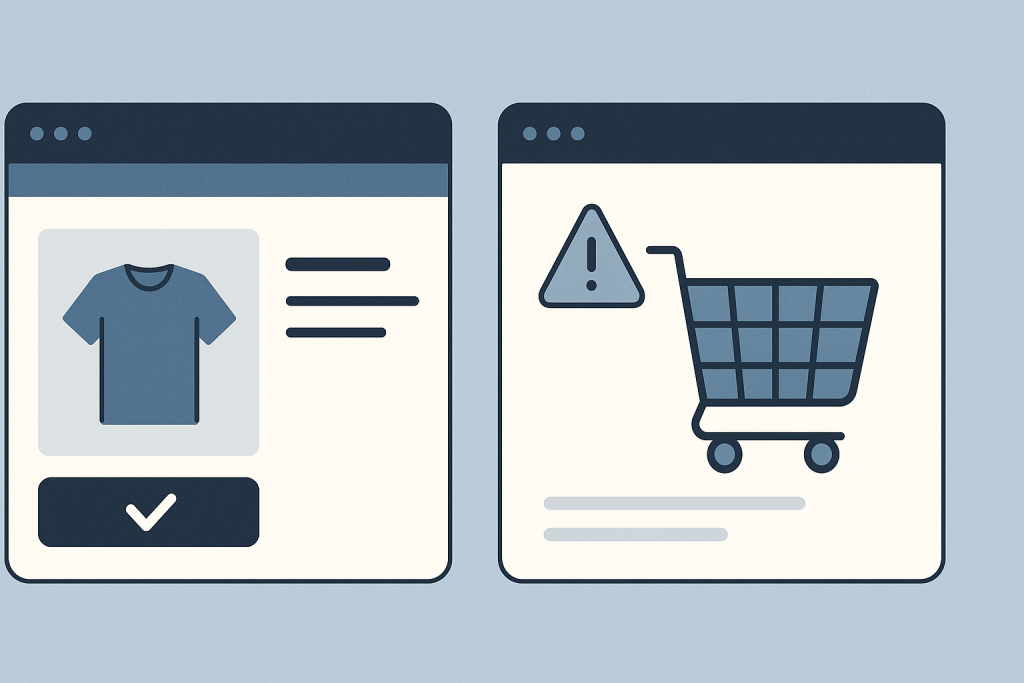
This usually means the store is failing to preserve cart state between requests. The cause may be a cache serving the wrong version of a page, a browser cookie that cannot be read consistently, a domain mismatch, or code interfering with WooCommerce’s cart and session behavior. It is not always a product, stock, or payment problem.
If active customers cannot keep items in their cart, it is worth treating the issue as a conversion problem rather than a minor display glitch. For a focused technical investigation, see WooCommerce Bug Fixing.
How to recognize a cart persistence problem
Not every report of an empty cart means the same thing. Write down the exact behavior before changing settings. Useful clues include:
- The item is never added, even though the button is clicked.
- The mini-cart updates but the full cart page is empty.
- The item appears briefly and disappears after a refresh.
- The cart works in one browser, device, or network but not another.
- The cart works on product pages but fails after navigating to checkout.
- The problem affects guests but not logged-in users, or the reverse.
- Only one language, currency, subdomain, or landing-page path is affected.
These details help distinguish a front-end display issue from a session or cookie issue. For example, a stale mini-cart can look empty while the server-side cart still contains the item. Conversely, a cart that disappears after a page refresh often points to a failure to retain the visitor’s session.
Check the issue in a clean browser session first
Start with a controlled test. Open a private or incognito browser window, visit the store directly, add one simple in-stock product, and open the cart page. Then refresh the page and move to another page before returning to the cart.
Testing in a clean session reduces the chance that an old cookie, browser extension, cached page, or administrator login is masking the real behavior. Repeat the same test on a phone or another browser if possible.
Do not assume the issue is fixed just because it works while you are logged into WordPress. Logged-in visitors are often excluded from full-page caching, while most customers are not. A WooCommerce cart empty after adding product issue that affects only guests is especially likely to involve caching, cookies, or a difference between public and logged-in traffic.
Review cache behavior around cart, checkout, and account pages
WooCommerce pages that contain customer-specific information must not be served as a static version created for another visitor. The cart, checkout, and My Account pages are the obvious examples, but caching can also interfere with product-page cart fragments, AJAX endpoints, or redirect behavior.
Look at every layer that can cache a response:
- A WordPress caching or optimization plugin
- Host-level page caching
- A CDN or reverse proxy
- Server-side object caching configuration
- Browser cache rules added by a theme or custom code
Confirm that the cart, checkout, and account pages are excluded according to the caching tool’s WooCommerce guidance. Also check whether the cache bypasses requests containing WooCommerce cart or session cookies. Clearing a cache may make the cart work temporarily, but that does not prove the configuration is correct. The important question is whether a new guest session can consistently add an item, navigate, refresh, and still see the correct cart.
Avoid disabling several systems at once on a live store. Change one layer, retest the same flow, and record the result. Otherwise, it becomes difficult to identify what actually corrected—or triggered—the issue.
WooCommerce relies on browser cookies to associate a visitor with their cart session. If the browser moves between versions of the site that do not share cookies correctly, the customer can appear to receive a new, empty cart.
Common examples include:
- Visitors switching between www and non-www versions of the domain
- HTTP to HTTPS redirects that are not consistent
- A shop running on a subdomain while links or redirects send visitors to the main domain
- Incorrect WordPress Address or Site Address values
- Proxy or CDN settings that make the origin site detect the wrong scheme or host
Watch the address bar while testing. Does the product page use one hostname and the cart use another? Does the site redirect only after the item is added? Even a subtle hostname change can separate the customer from the cookie that identifies their cart.
Cookie consent tools can also be relevant. If a consent configuration blocks essential functional cookies until a visitor accepts an optional category, cart behavior can fail. Essential store-session cookies should be handled appropriately under the site’s privacy and consent setup; do not blindly classify every cookie the same way.
Look for AJAX and JavaScript errors
Many themes use AJAX to add products without a full page reload and to refresh the cart count or mini-cart. If JavaScript fails, the visual cart may not update even though WooCommerce added the item on the server. On the other hand, a broken AJAX request can prevent the add-to-cart operation from completing at all.
Useful signs include a button that spins forever, a mini-cart that does not change, console errors in the browser developer tools, or failed network requests after clicking “Add to cart.” Script minification, defer or delay settings, security tools, and custom theme scripts can all affect this sequence.
When testing, compare a simple product with a variable product. Variation-selection scripts add another moving part. If simple products stay in the cart but variable products do not, record that difference rather than assuming all products are affected.
Check theme overrides and plugin interactions carefully
A custom theme can override WooCommerce templates or alter add-to-cart behavior. Extensions may change pricing, subscriptions, bundles, currencies, consent, memberships, product filtering, or checkout flow. Any of these can influence cart requests or session data.
Recent changes are useful clues, but they are not proof. A new optimization setting may expose an older theme incompatibility, for example. Review changes made shortly before the first customer report, including configuration changes that did not involve a plugin update.
If a staging environment is available, a controlled conflict test can be appropriate: temporarily switch to a standard WooCommerce-compatible theme or deactivate a suspected extension one at a time, then repeat the exact cart test. Do not run broad deactivation experiments on a live store during normal trading, especially when the store has active orders or complex integrations.
Why the cart page may be empty when the item was added
The apparent contradiction often comes down to separate steps in the request flow:
- The browser sends an add-to-cart request.
- WooCommerce creates or updates cart data for that visitor.
- The browser stores or sends the session cookie on later requests.
- The cart page retrieves the session and renders the current items.
A failure at any step can produce a similar customer-facing symptom. The item may not be added, the session may not be retained, or the page may display a cached or outdated result. That is why repeatedly changing product settings is rarely a reliable response to a WooCommerce cart empty after adding product problem.
What not to do while troubleshooting
- Do not clear all customer sessions repeatedly without understanding the impact; doing so can abandon legitimate carts.
- Do not edit WooCommerce core files or theme templates directly as a quick fix.
- Do not purge every cache and declare success without retesting as a fresh guest visitor.
- Do not make multiple plugin, theme, PHP, and server changes at the same time.
- Do not test only while logged in as an administrator.
Keep a short record instead: the time the issue began, affected URLs, browser and device results, whether it affects guests, and any recent site or infrastructure changes. This information makes diagnosis substantially faster.
When to get technical help
Get help promptly when customers cannot build a cart, the issue affects guest shoppers, carts disappear across devices, or the failure is intermittent and difficult to reproduce. Intermittent behavior is often where cache rules, session handling, redirects, and third-party scripts need to be traced together rather than guessed at individually.
Need help with a broken WooCommerce store?
If your WooCommerce cart is empty after adding a product and basic clean-browser testing does not reveal a clear configuration issue, describe the affected pages, whether the issue happens for guests, and what changed before it started. A focused review can trace the add-to-cart request, session behavior, cache response, and theme or plugin involvement without making risky production changes.
The goal is not merely to make the cart icon look correct. It is to ensure that a customer can add a product, keep it while navigating the store, reach checkout, and complete a reliable purchase flow.