
When the WordPress media library not loading problem appears, it can stop routine work quickly. You may see a blank Media screen, an endless spinner, missing thumbnails, a failed upload, or a message saying that a response is not valid JSON. Sometimes the Media Library works in one browser but not another. In other cases, existing files appear while new uploads fail.
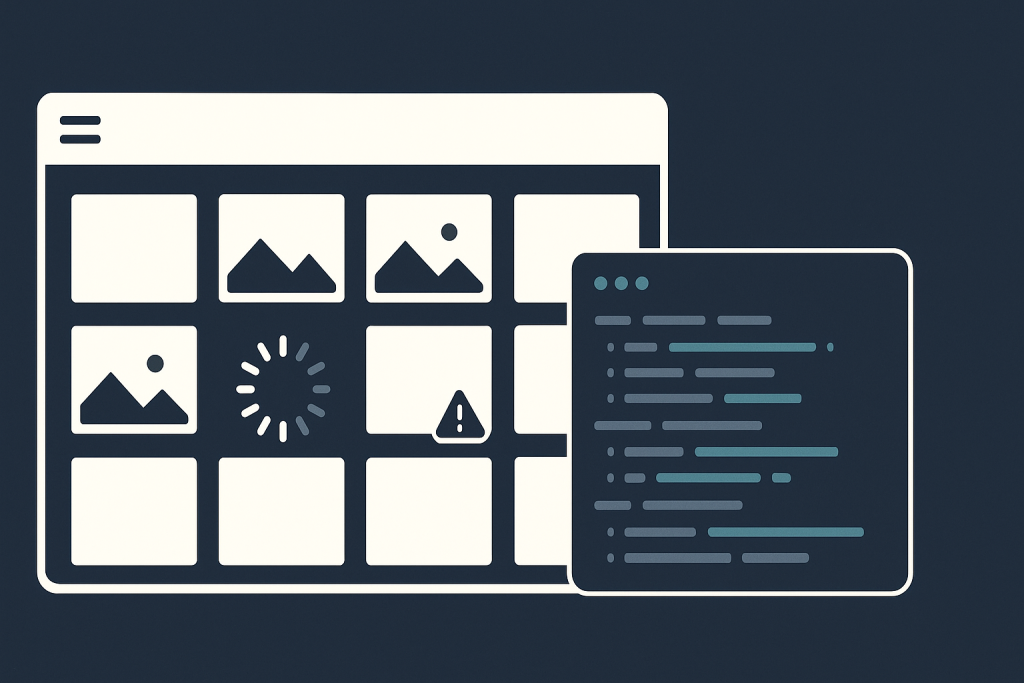
These are related symptoms, but they do not always have the same cause. The Media Library depends on the WordPress admin interface, browser scripts, authenticated requests, the REST API in many editor workflows, file permissions, available server resources, and sometimes external storage or security rules. The safest approach is to identify which part fails before changing plugins, permissions, or code.
If the problem affects a live site and you need someone to trace the failed request and apply a focused repair, WordPress Bug Fixing covers practical troubleshooting for broken WordPress functionality.
First, define what “not loading” means
Before testing fixes, record the exact behavior. A vague report such as “media is broken” makes it easy to investigate the wrong layer. Try to answer these questions:
- Does Media > Library open at all, or is the page blank?
- Do the grid and list views both fail?
- Are existing images missing, or are only thumbnails absent?
- Does the uploader reject every file, only large files, or one file type?
- Does the issue happen in the post editor when selecting an image?
- Does it affect all administrators or one account?
- Did it start after a configuration, hosting, CDN, security, plugin, or theme change?
Also test a small JPG or PNG with a simple filename. This separates a general uploader failure from a file-size, MIME-type, or filename-specific issue. Do not delete the existing uploads folder merely because images are not visible in the admin area. The files may still be intact, and deletion can turn a display problem into data loss.
Check whether the failure is browser-side or server-side
A Media Library screen is a web application, not just a folder listing. If JavaScript fails, the page may show an empty panel or spin indefinitely even though the uploads directory and database records are fine.
Start with a private/incognito browser window and, if possible, a second browser. Disable browser extensions that alter scripts, block requests, inject security tools, or manage privacy settings. Then clear only the relevant site cache if you have a controlled way to do so. Avoid treating a browser test as proof that the server is healthy; it only helps narrow the location of the fault.
For a persistent failure, inspect the browser console and Network panel while opening the Media Library or attempting an upload. Useful clues include:
- JavaScript errors naming a plugin, theme script, or blocked resource.
- Requests returning 401, 403, 404, 429, 500, or 503 responses.
- A request redirected to a login page instead of returning JSON.
- Mixed-content warnings after a domain or SSL configuration change.
- Blocked requests caused by a content-security policy, firewall, or browser extension.
The response body often matters more than the status code. For example, a request expected to return JSON may receive an HTML error page from a firewall, PHP error output, or a login form. WordPress then reports a generic failure even though the real cause is visible in that response.
Confirm WordPress URLs and authenticated requests
Media actions are sensitive to site URL consistency. If the WordPress Address and Site Address use different protocols, domains, or subdomains unexpectedly, the browser may send cookies to one location while the request goes to another. That can cause nonce checks, REST requests, or uploads to fail.
Review the configured URLs carefully, especially after moving a site, enabling HTTPS, changing a reverse proxy, or putting a CDN in front of WordPress. A mismatch between www and non-www, HTTP and HTTPS, or the public domain and an origin domain can produce confusing admin-only behavior.
Do not edit URL values casually on a production site. A mistaken value can lock administrators out or cause redirect loops. Make a backup and use the site’s established deployment or configuration process.
Look at the upload path, disk space, and permissions
If the screen loads but uploads fail, the server needs to create files and WordPress needs to record attachment data. Common underlying issues include exhausted disk space or inode limits, a missing or incorrectly configured upload directory, restrictive ownership or permissions, and a storage mount that is unavailable.
Check whether the server has adequate free space and whether PHP can write to the expected uploads location. The correct permission and ownership model depends on the hosting setup; there is no universal “set everything to 777” fix. Overly broad permissions can create a security issue while failing to resolve the ownership mismatch that actually blocks PHP.
Also consider whether the site uses object storage, an offload plugin, or a CDN integration. A newly uploaded file might reach WordPress but fail during offload, thumbnail generation, or delivery. In that case, compare the original upload request with the storage integration’s logs or status information.
Separate upload failure from image-processing failure
WordPress usually generates several image sizes after receiving an image. That processing relies on server resources and an image library such as Imagick or GD. A file can therefore upload successfully while thumbnails, resized versions, or image editing fail.
Signs of an image-processing issue include a visible original image with broken thumbnails, failure only with very large photographs, or errors during crop and edit actions. Memory limits, execution time limits, missing image-library support, damaged source files, and unsuitable image dimensions can all contribute.
Test with a small standard image and then compare it with a failing file. If only high-resolution images fail, document the dimensions and file size rather than immediately raising limits. Higher limits may mask the issue or create more pressure on shared resources. A sustainable solution may involve appropriate upload limits, image optimization before upload, or a server configuration adjustment.
Test plugins and the active theme methodically
Plugins that modify uploads, optimize images, enforce security policies, replace the media modal, manage roles, integrate cloud storage, or alter REST behavior can affect this workflow. The active theme can also introduce admin-facing scripts or custom editor functionality.
On a staging site, or during a controlled maintenance window, test by disabling likely integrations one at a time and retesting the same action. Keep a written record of each result. If the Media Library starts working after one component is disabled, that is evidence—not necessarily the final repair. The next step is to establish whether an update, configuration setting, custom integration, or compatibility problem caused the conflict.
Avoid disabling every plugin at once on an active business site. That can break forms, payments, caching, access control, and tracking while obscuring the original fault. If a live store or lead flow is affected, a focused technical investigation is safer than broad trial and error.
Use logs and response details to confirm the cause
Once you can reproduce the failure, correlate the time with the relevant server, PHP, WordPress, security, and CDN logs. Look for fatal errors, permission-denied messages, memory exhaustion, blocked requests, and file-system warnings. Record the URL requested, the response code, the time, and the action that triggered it.
Do not expose debugging output to site visitors. Error messages can reveal filesystem paths, plugin details, or configuration information. Logging should be collected privately and disabled or returned to the normal configuration after diagnosis.
When the WordPress media library issue is urgent
Media Library trouble deserves faster attention when it prevents editorial publishing, product image updates, campaign launches, or important document uploads. It is also urgent when a security layer is blocking legitimate administrators, when storage is close to full, or when the same underlying error affects other admin operations.
Need help with a WordPress bug?
Provide the affected admin URL, a screenshot of the visible message, the exact action that fails, the approximate start time, recent relevant changes, and whether the front end is affected. Those details help isolate whether the WordPress media library not loading issue is caused by the browser, a request, server storage, image processing, or an integration. A careful diagnosis protects existing media while resolving the actual failure instead of applying random changes.