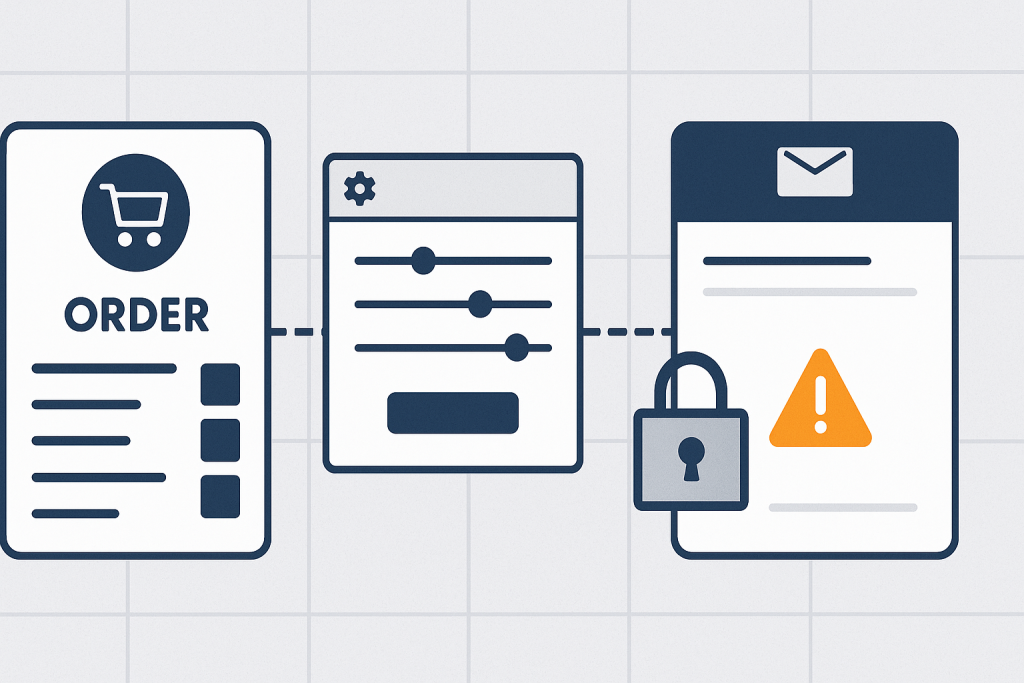
When **WooCommerce order emails not sending** becomes a store issue, it is easy to assume that orders have stopped working too. Often, that is not the case. An order may be created and paid correctly while the message that should notify the customer or store team never leaves the site, is rejected by a mail provider, or lands in spam.
That distinction matters. Changing checkout settings, payment gateways, or order statuses blindly can create a second problem while the original issue is only in the notification path. The practical goal is to establish three facts: whether WooCommerce triggered the email, whether WordPress handed it off for delivery, and whether the receiving mailbox accepted it.
If missing emails are affecting fulfilment or customer communication, professional [WooCommerce bug fixing](https://phprescue.dev/services/woocommerce-bug-fixing/) can help trace the failed step without treating a live store as a testing ground.
## First, confirm that the order itself exists
Start with a real affected order in WooCommerce. Do not rely only on a customer saying they did not receive an email. Check whether the order appears in the admin area, its current status, payment information, line items, and billing email address.
The order status is especially important because WooCommerce emails are normally tied to specific events. For example, a new order notice, processing order message, completed order message, failed order notice, or refunded order message can each have different trigger conditions. If an order remains pending payment, an email intended for a paid or processing order may not be expected yet.
Compare an affected order with one that produced the expected messages in the past. Look for meaningful differences:
– Is the payment method different?
– Did the order reach a different status?
– Is it a guest checkout or an existing customer?
– Does the customer email address contain a typo?
– Are only admin notifications missing, only customer emails missing, or both?
– Did the issue begin at a specific time?
This comparison narrows the scope. If only one customer’s email is missing, mailbox filtering or an incorrect address may be more likely than a site-wide sending failure. If every order notification stopped at the same time, investigate the site’s email configuration and server delivery path.
## Check the relevant WooCommerce email notification
WooCommerce has separate settings for each notification type. Go to **WooCommerce > Settings > Emails** and locate the message expected for the affected order. Review it carefully before changing anything.
Check whether the email is enabled. Confirm the configured recipient address for admin-facing notices, such as New Order. A recipient field can contain an old staff address, an address with a typo, or multiple addresses in an unsupported format depending on the setup.
For customer emails, check the subject, heading, content type, and any custom template setting, but remember that editing wording usually will not solve a delivery issue. More useful questions are:
– Does this notification apply to the order status being tested?
– Is it enabled?
– Is the recipient address correct?
– Has a custom code snippet, theme override, or email customisation plugin changed its behaviour?
– Does the same email send when the order status is changed manually in a controlled test?
A manually changed status can be a useful diagnostic signal, but it should not be confused with a complete checkout test. An order created through checkout may pass through gateway callbacks, stock handling, fraud checks, subscriptions, or other extensions that influence the final status and timing.
## Separate “not triggered” from “not delivered”
This is the most valuable split in the troubleshooting process.
An email may not be triggered because the order did not reach the status that launches the notification, because custom code altered the normal flow, or because an extension suppressed a message. In that case, the work is mainly about order lifecycle and WooCommerce hooks.
An email may be triggered but not delivered because WordPress cannot send mail reliably, the hosting server restricts PHP mail, sender authentication is incomplete, an SMTP provider rejects the message, or the receiving mailbox filters it. In that case, changing WooCommerce email copy or payment settings will not resolve the root cause.
Useful evidence includes a mail log from a properly configured email-delivery tool, server mail logs where available, and error messages from the SMTP or transactional email provider. These sources can show whether a message was generated, passed to a mail service, rejected, deferred, or accepted for delivery.
“Accepted” does not always mean “seen in the inbox.” A provider may accept a message and the recipient’s mail system may later place it in spam, quarantine it, or apply a mailbox rule. Check spam and junk folders, but also ask whether the recipient domain has strict filtering, especially for business email addresses.
## Review WordPress mail delivery and SMTP
By default, many WordPress installations use the server’s mail function. Its reliability varies considerably between hosts and environments. A site can appear to send mail successfully while messages have poor deliverability or fail without a visible WooCommerce error.
Using a reputable SMTP or transactional email service can provide authenticated sending and delivery records. However, installing an SMTP plugin is not automatically a fix. The connection details, sending domain, encryption settings, API credentials, and sender address must all match the chosen provider’s requirements.
When reviewing an SMTP setup, look for:
– A valid connection or authentication status
– A sender address that belongs to the approved sending domain
– The correct return-path or bounce handling, where supported
– Recent error messages or failed delivery attempts
– A test email result that is corroborated by provider logs
– No duplicate mail plugins competing to control delivery
Avoid placing API keys or SMTP passwords in screenshots, support tickets, or public notes. If credentials may have been exposed, replace them through the email provider rather than assuming they are still safe.
## Check the From address and domain authentication
A common source of poor delivery is a mismatch between the site’s From address and the domain authorised by the mail provider. For example, a website may try to send from an address on its own domain while using a server or provider that is not permitted to send mail for that domain.
Email providers commonly rely on domain authentication records such as SPF and DKIM, and may apply alignment rules through DMARC policies. The exact setup depends on the email service, but the broader principle is straightforward: the sending identity should be intentionally configured, consistent, and authorised.
Do not add or alter DNS records just because a generic tutorial says to do so. A mistaken DNS change can disrupt existing mail. Instead, use the instructions supplied by the actual email provider and verify whether another system already manages the domain’s mail records.
## Look for conflicts and custom email changes
If email delivery worked before a plugin, theme, code, or hosting change, identify the change rather than disabling random components on a live store. WooCommerce email templates may be overridden by a theme, while automation, invoice, fulfilment, CRM, membership, subscription, and marketing tools can add their own order-event logic.
Signs of a conflict or customisation issue include:
– Only one particular order status fails to send notifications
– A custom email template produces errors or blank content
– Logs show a PHP error during order processing
– Notifications stopped after a new automation or email plugin was enabled
– A message sends twice, suggesting multiple handlers
– Admin messages work but customer messages do not, or the reverse
A staging environment is the safer place to disable extensions or switch templates for isolation. On production, preserving order data and customer communication should take priority over broad trial-and-error changes.
## Test with a controlled order
After reviewing configuration and delivery evidence, run a controlled test. Use a low-risk product, a known test address, and a payment route that does not create unintended charges. Record the order number, starting status, final status, expected notification, timestamp, sender address, and whether the email service logged the message.
Test more than one destination when possible. A message arriving at one mailbox but not another points toward recipient filtering or domain-specific policies. A message absent from both the WordPress-side log and the email provider suggests that WooCommerce did not trigger it or the handoff failed earlier.
Keep tests small and documented. Repeatedly resending messages or editing order statuses can confuse staff, create duplicate customer emails, and make the event history harder to interpret.
## When missing WooCommerce emails are urgent
Treat the issue as urgent when new orders are being paid but fulfilment staff are unaware of them, customers are not receiving confirmations, refunds are not being communicated, or the problem affects a high-volume sales period. The store may still be technically accepting orders while operationally failing.
In the short term, check orders directly in WooCommerce, establish a manual fulfilment process, and avoid promising customers that a notification was sent until that is confirmed. Then investigate the trigger and delivery path methodically.
## Frequently asked questions
### Why are WooCommerce new order emails not going to the store owner?
Check that the New Order email is enabled and that its recipient address is correct. Then determine whether WordPress and the configured mail service actually attempted delivery. If customer emails arrive but the store owner’s message does not, the recipient setting or mailbox filtering is a strong lead.
### Can an order be successful if no WooCommerce email arrives?
Yes. Order creation, payment confirmation, and email delivery are related but separate parts of the store workflow. Verify the order status and payment record before assuming that a missing email means payment failed.
### Does an SMTP plugin guarantee that order emails will arrive?
No. SMTP can improve reliability when configured correctly, but delivery can still be affected by authentication, provider restrictions, sender identity, recipient spam filtering, and configuration errors.
### Should I resend all missed order emails?
Not until you know which messages were actually missed and who should receive them. Resending without a record can create duplicate confirmations or confusion. First identify affected orders and confirm what each customer or staff member needs.
A reliable email path is part of a dependable WooCommerce store. By separating order status, WooCommerce notification settings, WordPress handoff, and final mailbox delivery, you can investigate **WooCommerce order emails not sending** with evidence rather than guesses.