
Magento cron not running can create failures that are easy to miss at first. The storefront may still load and customers may still place orders, while important background work quietly stops: transactional emails may not send, catalog rules may not apply, imports may stall, feeds may go stale, and tasks that depend on scheduled processing may build up.
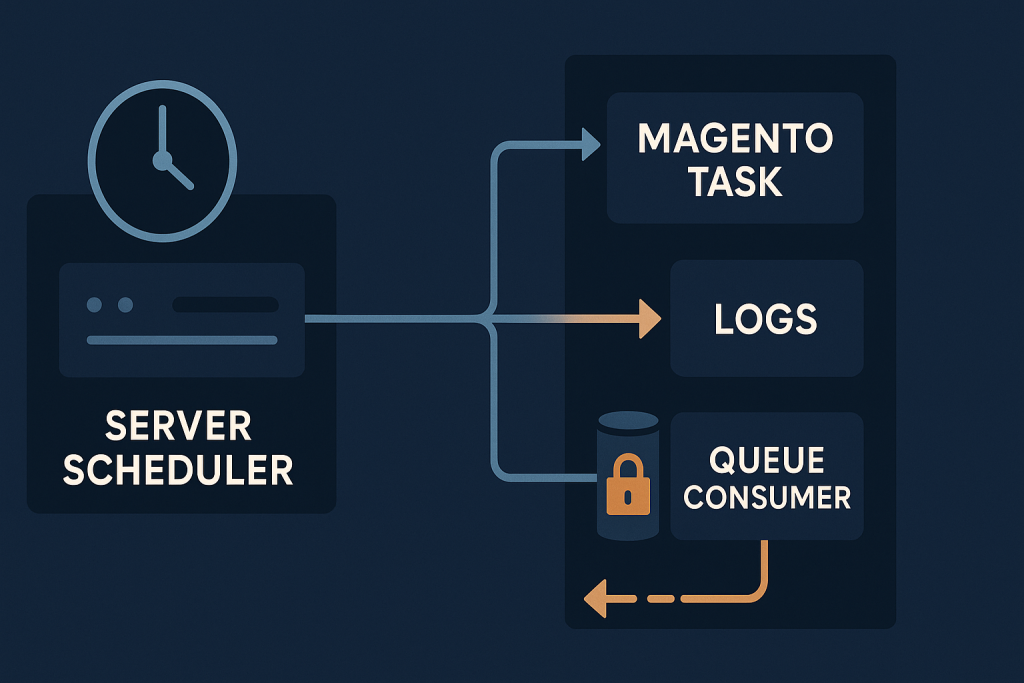
The safest response is not to repeatedly run commands until something changes. First identify whether the failure is in Magento’s scheduler, the server-level cron entry, the PHP command environment, a lock, or a related background process. That approach avoids masking the cause and reduces the risk of creating duplicate work on a live store.
If the issue affects orders, customer communication, stock, pricing, or core store operations and needs hands-on investigation, see the Magento bug fixing service.
What it means when Magento cron is not running
Magento uses cron to schedule and execute recurring work outside the customer’s web request. A scheduled task is recorded, becomes due, and is then picked up by a process running through the command line. If that chain breaks, the task may remain pending, be missed, or show an error depending on the configuration and the specific job.
A cron problem does not always mean every scheduled activity is broken. Magento commonly separates work into cron groups, and an issue affecting one group or process may leave another apparently healthy. That is why a single successful command or a working storefront is not enough evidence that the scheduler is healthy.
Common signs of a Magento cron failure
- Order, invoice, shipment, or customer emails are delayed or absent.
- Scheduled imports, exports, product feeds, or ERP synchronizations no longer update.
- Catalog price rules or other time-based changes do not take effect as expected.
- Tasks in the cron schedule remain pending long after their scheduled time.
- Commands produce errors only when run automatically, not when run manually.
- Indexer-related symptoms appear after bulk catalog changes, even though the indexer itself is not necessarily the original fault.
- Queue-backed integrations accumulate messages or stop processing.
These signs can also come from a module defect, a remote API problem, database contention, or a server resource limit. Treat them as clues, not proof that one command will solve the issue.
Start with scope and recent changes
Before changing configuration, record what stopped working, when it was last known to work, and what changed near that time. Useful changes include a Magento or extension deployment, a PHP upgrade, a hosting migration, a cron configuration change, a new integration, altered file ownership, database maintenance, or an unusually large import.
Then determine whether the problem is limited to one function. For example, failed email delivery could be a mail transport issue even if the scheduler is working. A failed feed may point to a vendor API or credentials. Several unrelated scheduled functions failing at the same time makes a shared cron or server execution problem more likely.
Check Magento’s scheduled task records
Magento’s cron schedule provides a useful view of what the application believes is happening. Review the schedule through an approved administrative or database-access method appropriate for the environment. Look for patterns rather than focusing only on one row:
- Many old tasks still marked pending can indicate that no worker is picking them up.
- Repeated errors from the same job usually point to a failing module, dependency, or data condition.
- Long-running tasks may be blocked by slow external services, database contention, or insufficient server resources.
- A gap in scheduled work can indicate that schedule generation itself is not happening.
Capture the job code, timestamps, status, and associated error details before cleaning records or retrying work. That evidence makes it easier to distinguish a scheduler failure from one defective job.
Verify the server-level cron entry
Magento cannot run scheduled tasks merely because its code is present. The server must invoke the correct Magento cron command on a reliable schedule. Confirm that the configured cron entry uses the intended application path, the right PHP binary, and the correct operating-system user.
Execution context matters. A command that works in an interactive SSH session may fail under cron because cron has a minimal environment. Its PATH can differ, environment variables may not be loaded, the PHP version may not match the web runtime, and the executing user may lack access to project files, temporary directories, or credentials.
Do not assume the hosting control panel’s “cron enabled” indicator proves that the command is succeeding. Review any cron output or mail notifications, and check system logs where available. An invalid path, a missing PHP executable, or a permissions error can prevent Magento from starting at all.
Compare command-line PHP with the web environment
A mismatch between CLI PHP and web PHP is a common source of confusing Magento behavior. The server may run a different PHP version, use a different php.ini file, omit required extensions, or apply different memory and process limits when cron executes.
Compare the PHP binary used by the cron entry with the expected production version. Also review extension availability, memory settings, and relevant environment configuration. Avoid exposing diagnostic output publicly to do this. The goal is to validate the runtime safely, not to turn on verbose production debugging for visitors.
Review logs around the failure window
Logs often identify the first meaningful failure: a PHP fatal error, a permissions problem, an unavailable service, an authentication rejection, or a database exception. Check Magento logs and the server’s PHP or cron-related logs for the same period as the first missed job.
Pay attention to repetition. One failed task may be isolated, but the same stack trace recurring every few minutes can consume resources and obscure more important work. A timeout from an integration may mean the scheduler is operating correctly but the job needs a separate fix, retry strategy, or vendor-side investigation.
Check locks, long-running work, and resource pressure
Magento protects some scheduled processes from overlapping. That is useful, but a stale lock or a process that never finishes can stop later runs from doing useful work. Before deleting lock-related data or terminating processes, confirm what is currently running and whether it is legitimate.
Also inspect basic server health: available disk space, memory pressure, process limits, database capacity, and CPU load. A full disk can prevent logs and temporary files from being written. A saturated database can make tasks appear stuck. Killing processes without knowing their role can leave incomplete imports, interrupted consumers, or inconsistent external synchronization states.
Separate cron from queue consumer failures
Some Magento installations rely on message queues and consumers for asynchronous work. Cron may successfully schedule a task while the downstream consumer is stopped, misconfigured, unable to connect to its broker, or failing on a particular message. In that case, repeatedly running cron will not resolve the consumer issue.
Trace the full path: what creates the task, whether it is scheduled, whether a message is published, whether a consumer receives it, and where processing fails. This boundary-based approach prevents a queue problem from being mislabeled as a generic cron failure.
Recover safely and verify the outcome
Once the cause is understood, apply the smallest corrective change possible. That might mean correcting the cron command path, aligning the PHP runtime, repairing ownership, resolving a module error, restoring access to a dependency, or addressing resource constraints. Make changes in staging first when the issue and environment permit it.
After the fix, verify more than command output. Confirm that new schedule entries are created, due tasks are processed, expected logs stop recording the error, and the business outcome occurs. For example, test a non-sensitive email flow, confirm a controlled import completes, or verify that the affected integration updates as expected. Monitor at least several normal schedule cycles rather than declaring success after a single manual run.
When the issue needs urgent help
Escalate quickly when failed background work affects paid orders, inventory accuracy, fulfillment, customer communications, pricing, or a critical integration. It is also sensible to get help when multiple cron groups fail, errors recur after a deployment rollback, or the investigation points to database locks, queue infrastructure, or custom module code.
For a store-wide incident with immediate commercial impact, emergency website bug fixing may be the appropriate route.
Frequently asked questions
Can I run Magento cron manually to fix the problem?
A manual run can help test whether the command starts, but it does not explain why scheduled execution failed. Avoid repeated runs on a live store until you understand whether jobs can overlap or trigger duplicate external actions.
Why does Magento cron work over SSH but not automatically?
The cron job may use a different user, PATH, PHP binary, working directory, permissions set, or environment variables than your SSH session. Compare the actual scheduled command and its execution context.
What about Magento 1?
Magento 1 stores can have different conventions, extensions, and server constraints, especially when they are legacy installations. See Magento 1 Bug Fixing: How to Stabilize a Legacy Store Safely for a focused legacy-store approach.
Need a Magento bug fixed?
Provide the affected function, the first time it failed, recent changes, relevant error output, and whether the issue occurs on staging as well as production. Clear evidence shortens the path from symptom to a safe fix.