
When WooCommerce coupons not working becomes a customer-facing problem, it can quietly reduce conversions and create support work. A shopper may see “coupon code does not exist,” “coupon is not valid,” or a message that the code has been applied even though the expected discount is missing. In other cases, the code works in one cart but fails in another.
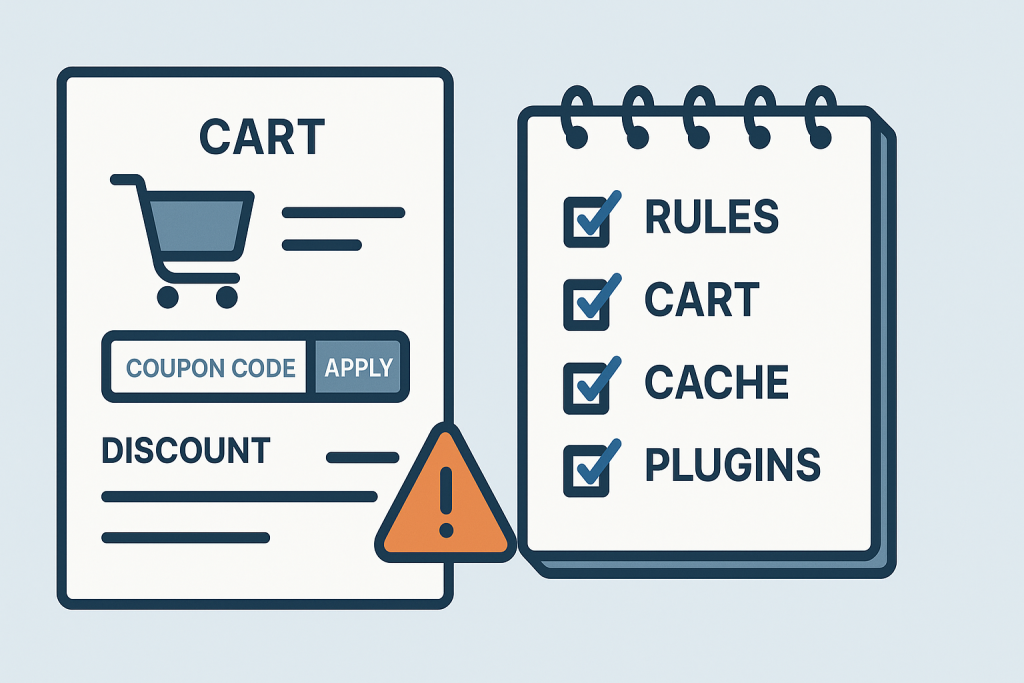
Coupon problems are not always caused by a broken coupon. WooCommerce evaluates a number of conditions before it allows a discount, including cart contents, customer details, minimum spend, product restrictions, usage limits, and the way totals are calculated. Caching, custom checkout code, and discount extensions can also affect the result.
This guide provides a safe way to narrow down the cause without changing several live-store settings at once. If the issue affects active sales or requires technical investigation, WooCommerce bug fixing can help trace the failed cart and checkout flow.
Start by defining exactly how the coupon fails
“The coupon does not work” can describe several different failures. Before editing the coupon or disabling plugins, reproduce the problem and write down what happens.
- Is the code rejected before it is applied?
- Does WooCommerce say the coupon is applied, but the total does not change?
- Does the discount appear in the cart but disappear at checkout?
- Does the code work for one product, customer, country, or payment method but not another?
- Is the discount amount wrong rather than completely absent?
- Did the behavior begin after a promotion, configuration change, plugin change, or custom development work?
Use a test product, a test account where appropriate, and a repeatable cart. Record the coupon code, products, quantities, subtotal, shipping destination, login state, and the exact notice displayed by WooCommerce. This turns a vague report into a scenario that can be checked consistently.
Check whether the coupon is published and entered correctly
The simplest causes are worth eliminating first. In the WooCommerce coupon editor, confirm that the coupon is published rather than saved as a draft or placed in the trash. Check the code itself for spaces, similar characters, and any unexpected capitalization copied from an email or banner.
WooCommerce coupon codes are generally not case-sensitive, but extra spaces and nonstandard characters can still create confusion, especially when a code has been copied from formatted content. Test by manually typing the code into a clean browser session rather than pasting it.
Also confirm that coupons are enabled globally in WooCommerce settings. If the coupon field is missing from the cart or checkout entirely, this site-wide setting is more relevant than the individual coupon configuration. A missing field can also be caused by a custom cart or checkout template that does not output the expected WooCommerce elements.
Review coupon eligibility rules one by one
Most coupon failures are valid rule matches rather than software errors. A code may be designed correctly but fail because the current cart does not meet a condition. Review each restriction against the exact test scenario.
Minimum and maximum spend
A coupon can require a minimum spend or impose a maximum spend. The important detail is the value WooCommerce uses at the stage where it validates the coupon. Depending on store settings and extensions, store owners may assume that shipping, tax, another discount, or a particular product total counts toward eligibility when it does not.
Test with a cart that is clearly above the minimum threshold, not one that is only a few cents above it. This avoids false conclusions caused by rounding, taxes, or a price adjustment.
Individual-use and excluded coupons
An individual-use coupon may not be combined with other coupons. A shopper can therefore see a rejection even though the code itself is valid. Check whether another code is already in the cart, including one added automatically by a marketing or loyalty extension.
Likewise, a coupon can exclude selected products, sale items, categories, or other coupons. An automatic discount rule may be invisible to the shopper but still change the coupon logic.
Product and category restrictions
Product restrictions are a common reason WooCommerce coupons not working appears inconsistent. The code may apply only to a particular product ID, variation, category, or group of products. A variable product can be especially confusing: the parent product may look eligible, while the selected variation or an extension’s product metadata changes the evaluation.
Build a minimal cart containing only one intended eligible product. Then add products one at a time until the coupon fails. This is a controlled way to identify an excluded item, category condition, or bundle component affecting the result.
Email, customer, and usage restrictions
A coupon may be restricted to particular billing email addresses, a specific customer, or a limited number of uses. Test while logged out and while logged in, using the intended customer account. Check the billing email at checkout as well as the email on the user profile, because extensions may validate one value before another is available.
Review the usage limit per coupon and per user. A customer may have used a code previously, or orders that were later refunded or failed may need review to understand how an installed extension handles usage counts. Avoid manually resetting data until the store’s intended promotion rules are clear.
Determine whether the discount is calculated incorrectly
A code that applies but produces the wrong amount is a different problem from a code that is rejected. First, identify the discount type: fixed cart discount, fixed product discount, or percentage discount. Each has different expected behavior when multiple products, quantities, taxes, sale prices, and excluded products are involved.
For example, a percentage coupon may discount only eligible line items, not the full cart. A fixed-cart discount may be distributed across eligible items. If the store displays prices including tax but calculates discount logic using different tax settings, the amount shown to a shopper can also differ from what they expect.
Check the cart and checkout totals carefully:
- Which line items received a discount?
- Was shipping discounted, or was it intentionally excluded?
- Did tax change after the coupon was applied?
- Did the discount change when the customer selected a different country or postcode?
- Is a currency switcher, pricing plugin, subscription plugin, or bundle extension involved?
Do not alter tax settings merely to make one test look correct. Tax configuration has store-wide consequences and should be evaluated separately from coupon rules.
Check cart, session, and cache behavior
Cart and checkout pages need to reflect a visitor’s session. If a caching layer serves an outdated or shared version of a cart-related response, customers may see stale totals, an old notice, or a coupon state that does not match the server-side cart.
Test in a private browser window after clearing the affected site cache. Compare the result with a logged-in test user and a guest session. If the issue occurs only on one device or after navigation through a particular landing page, note that pattern.
A cache should not normally cache cart, checkout, or account pages as ordinary public pages. However, caching behavior can be influenced by host-level tools, content delivery networks, optimization plugins, and custom rules. Treat cache changes carefully on a live store: clearing the right cache may help testing, but broad configuration changes can create unrelated issues.
Look for plugin, theme, or custom-code interference
Coupon validation touches the cart, session, product data, and totals. That makes it a frequent integration point for extensions that modify prices or checkout behavior. Common examples include dynamic-pricing tools, gift-card systems, loyalty programs, subscription plugins, product bundles, multi-currency tools, custom snippets, and checkout-field extensions.
The active theme can matter too, particularly if it contains WooCommerce template overrides or JavaScript that refreshes cart fragments and checkout totals. A problem may be visible only on the front end while the coupon itself is configured correctly in the dashboard.
On a production store, do not randomly deactivate several plugins during live traffic. That can remove important functionality, disrupt orders, or make the original issue harder to reproduce. A safer approach is to review recent changes, inspect available logs, and reproduce the issue in a staging environment where possible. Technical investigation should isolate one variable at a time and verify the full cart-to-checkout flow after a change.
When a coupon issue needs urgent attention
A single expired campaign code is not always urgent. It becomes more serious when a promotion is actively advertised, a large group of customers is affected, discounts are being applied incorrectly, or checkout totals are unreliable. A discount that gives more than intended can be as costly as one that rejects valid customers.
Escalate promptly when coupon behavior affects a launch, paid advertising campaign, seasonal sale, or a significant share of transactions. Preserve evidence before making changes: screenshots, affected URLs, coupon settings, sample cart details, timestamps, and any relevant error messages. This gives the person investigating the issue a clear starting point.
Need help with a broken WooCommerce store?
For a coupon problem, useful information includes the affected coupon code, the expected discount, a sample product and customer scenario, the actual cart total, the exact notice shown, and when the behavior began. With a reproducible case, it is much easier to determine whether the cause is a coupon rule, cart calculation, session issue, cache layer, extension conflict, template override, or custom code.
The goal is not simply to make a single code appear to work. A proper fix should preserve the intended promotion rules and confirm that cart totals, checkout totals, taxes, and order records remain accurate for the affected customer journey.